

Supported surfaces
- Copilot chat on github.com and copilot.com
- The GitHub mobile apps
Prerequisites
Affinity- Plan: Scale, Advanced, or Enterprise (required for API and MCP access).
- Admin setup: None required by default. If an Affinity admin has disabled Copilot under Settings → Affinity MCP, ask them to re-enable it.
- Certified connector: The Affinity MCP connector is available in the Microsoft Learn connector reference. No manual installation is required — search for Affinity MCP directly in your Power Platform environment.
- License: A Microsoft Copilot Studio license is required. MCP tools authored in Studio inherit the publisher’s licensing for end users.
- Microsoft 365 admin access: Publishing the agent to Microsoft 365 surfaces (Copilot, Teams, Outlook) requires a Microsoft 365 admin to approve it in the Microsoft 365 admin center (Agents → All agents). If you aren’t an admin, ask one to approve it. See Approve the agent.
- Classic experience required: Copilot Studio’s new authoring experience has a known bug with certified connectors — use the classic experience instead. See Step 1 in the OAuth setup below.
- An active GitHub Copilot subscription (Individual, Business, or Enterprise).
- An Affinity API key. See Authentication.
Copilot Studio — OAuth (Recommended)
The Affinity MCP connector is available as a certified connector in the Microsoft Power Platform catalog. OAuth authentication is handled via your Affinity account — no API key required. Setup is performed by the agent author. Once added, the tool is available to every user of the agent.Step 1: Open Copilot Studio classic experience
- Go to Copilot Studio and open the … menu at the bottom of the left sidebar.
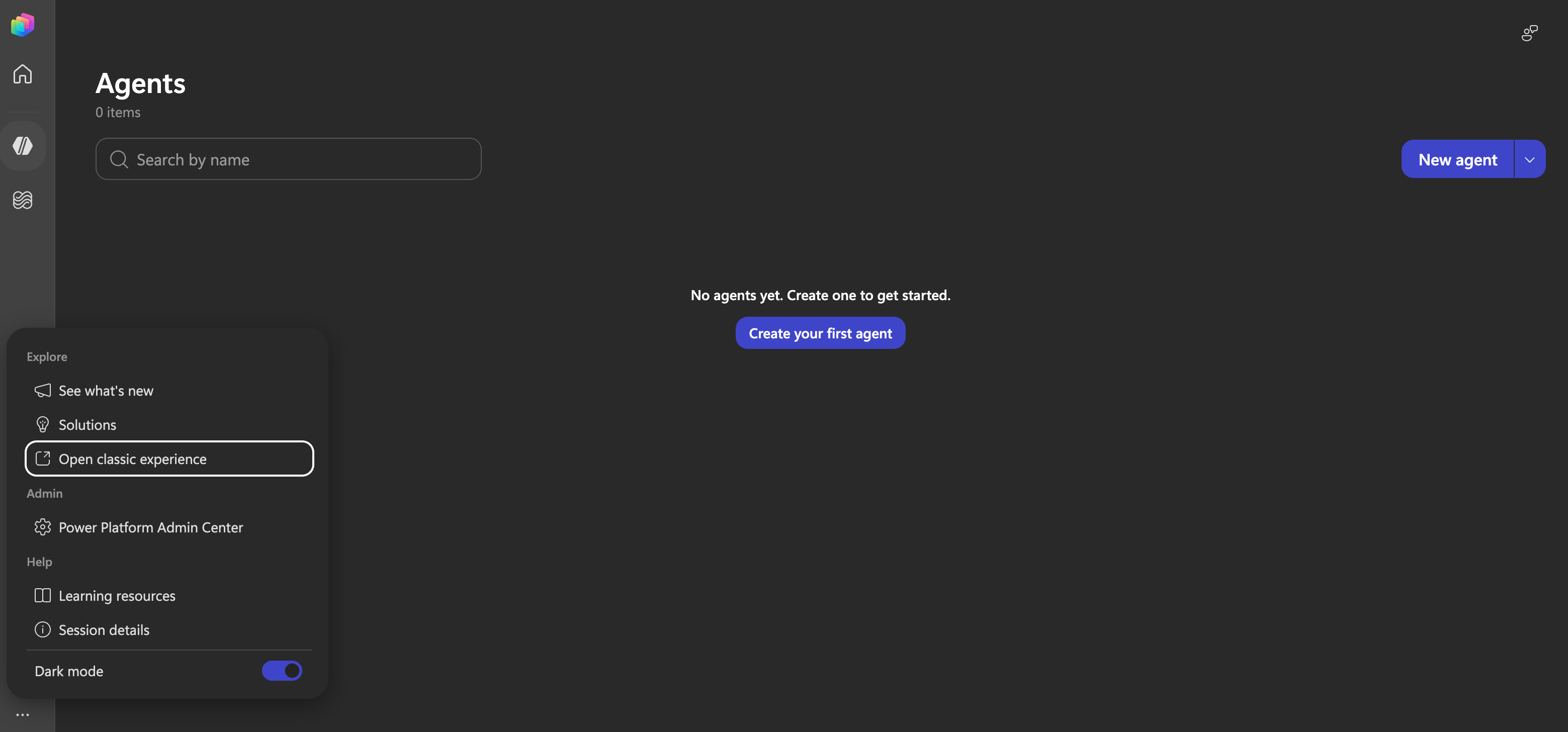
The ... menu in Copilot Studio with Open classic experience highlighted.
- Select Open classic experience.
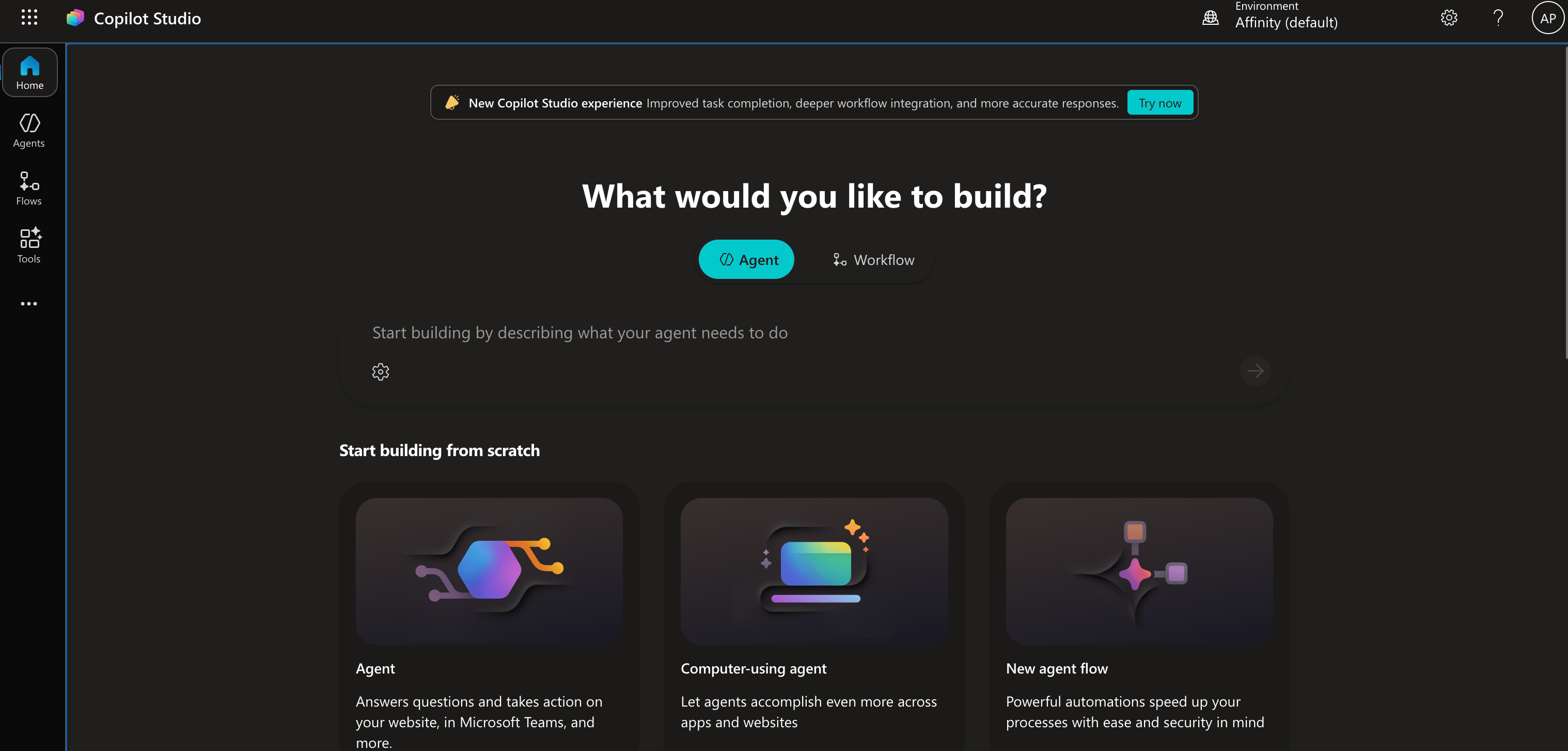
The Copilot Studio classic experience home page.
Step 2: Create an agent
- Click Agents in the left sidebar.
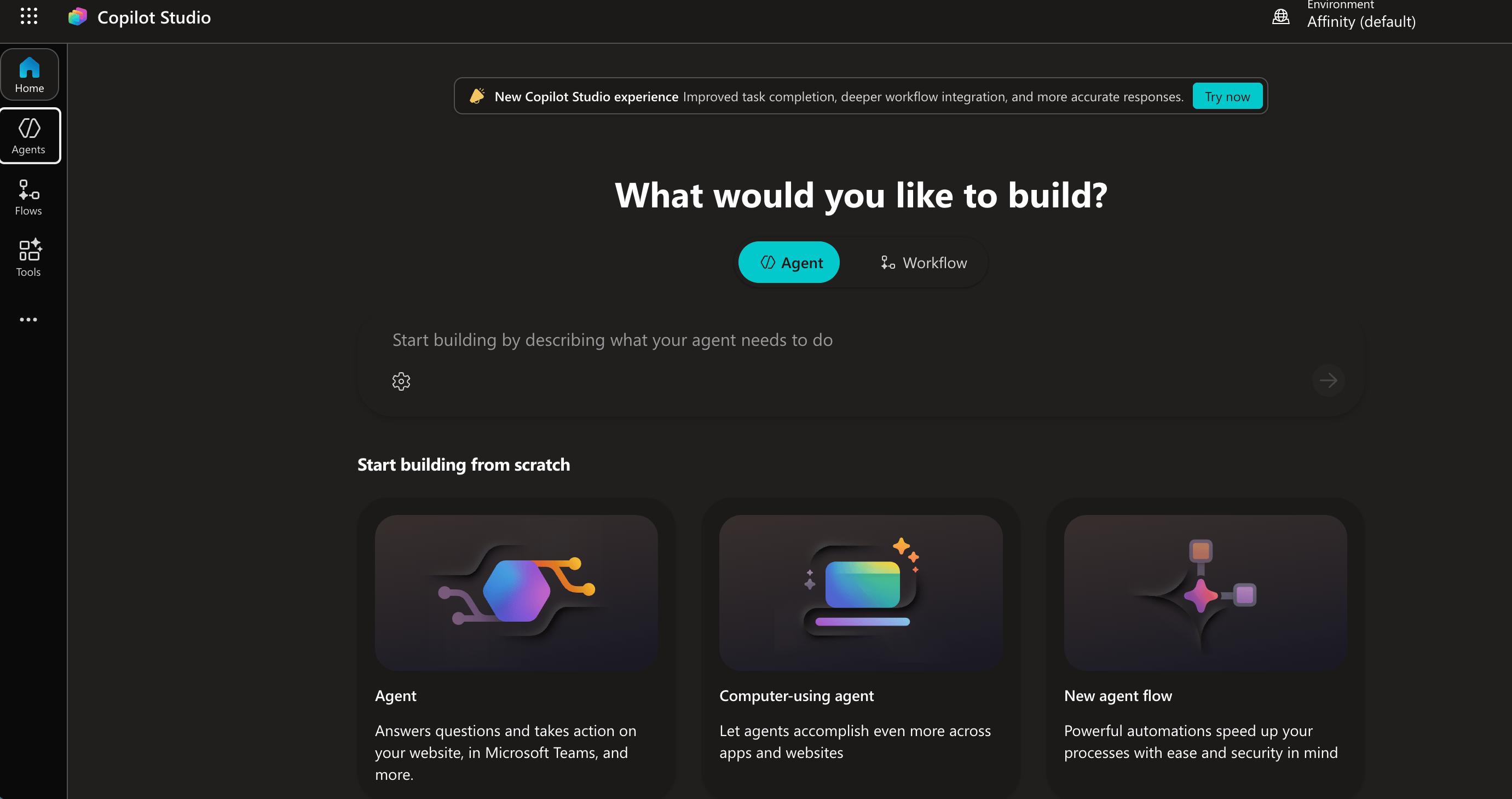
The Agents section in the Copilot Studio classic experience left sidebar.
- Click Create blank agent.
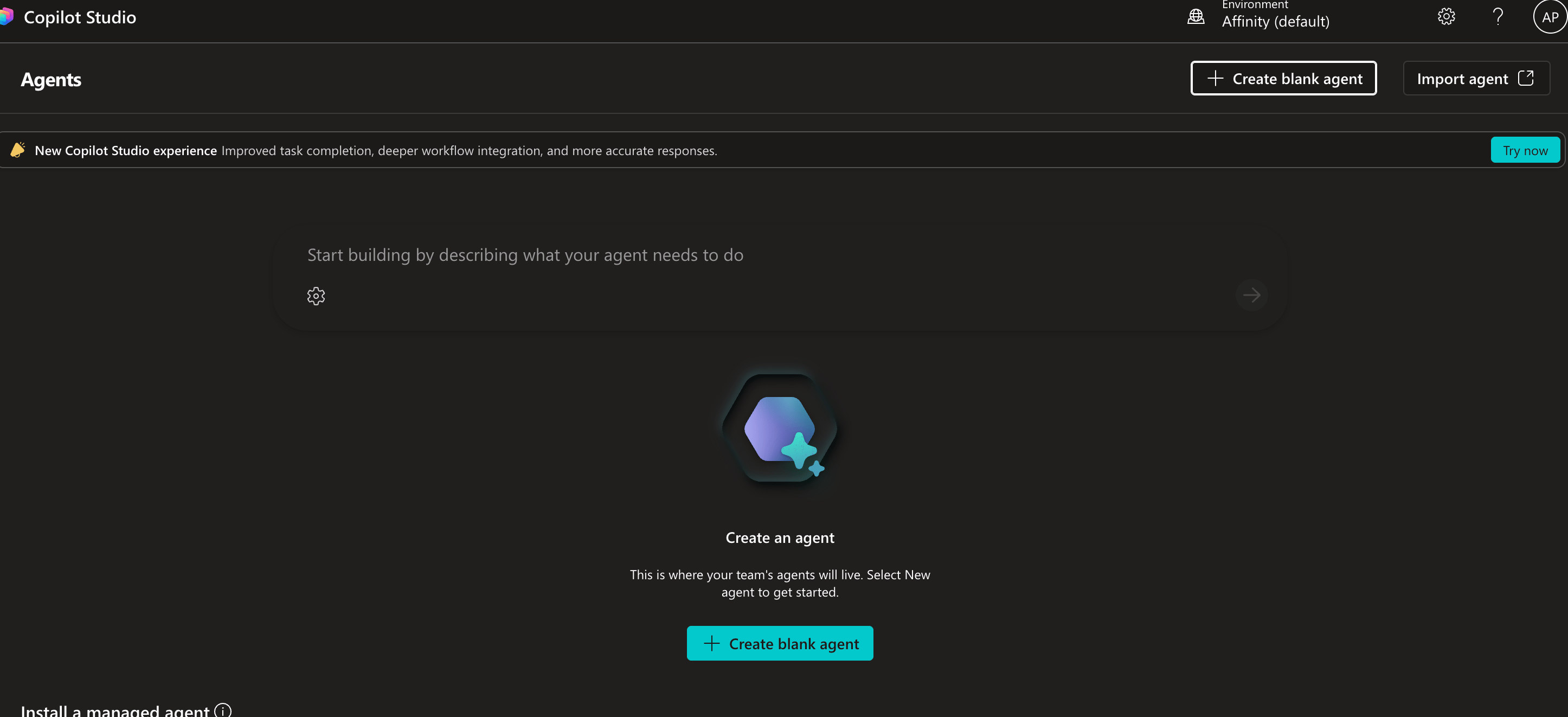
The Agents page with the Create blank agent button.
- Give the agent a name and description, then click Create. Suggested values:
- Name:
Affinity - Description:
Custom agent that connects Affinity to Copilot
- Name:
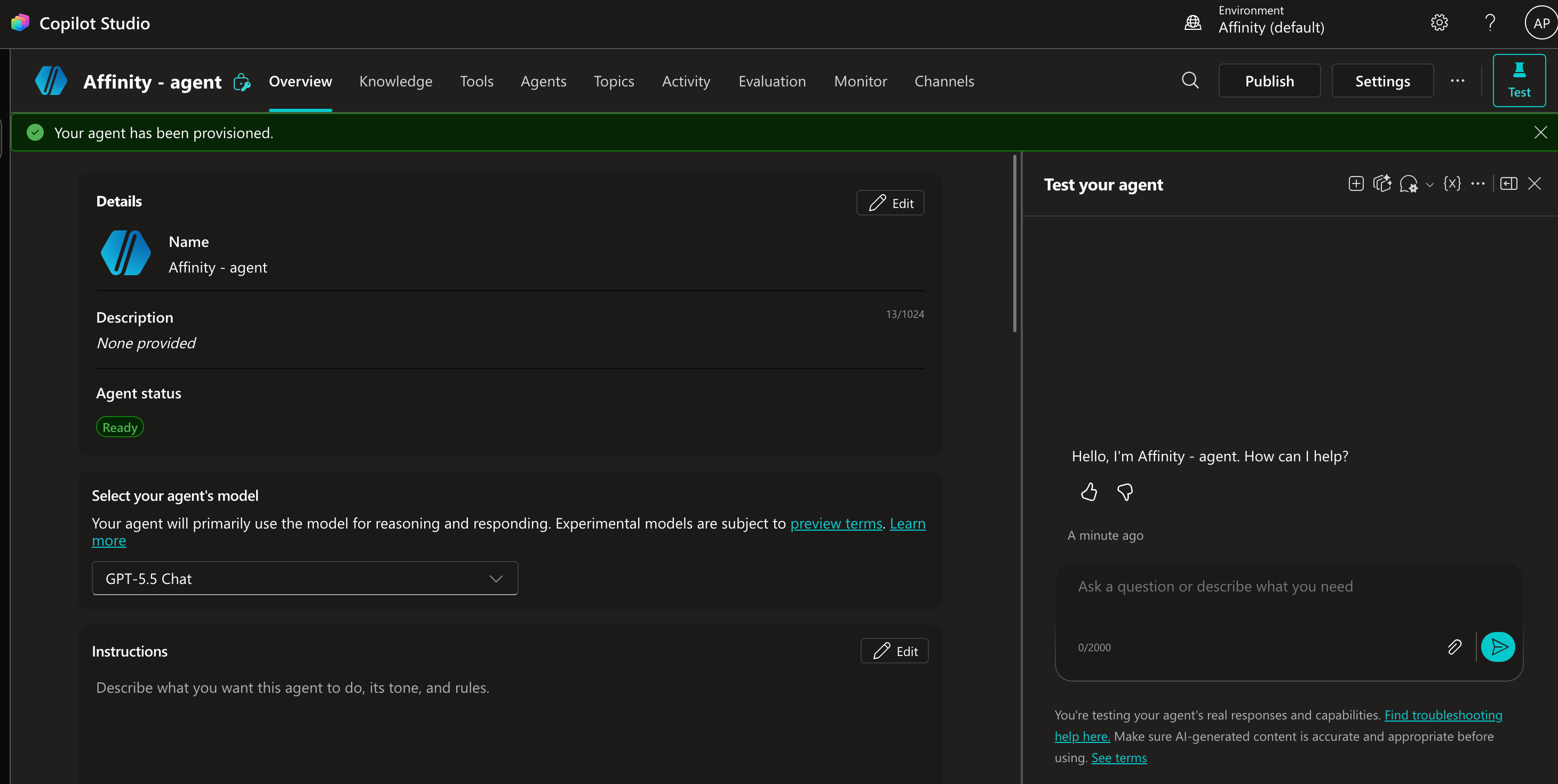
The agent overview page after creation, showing the agent is ready.
Step 3: Add the Affinity MCP tool
- Click the Tools tab in the top navigation.
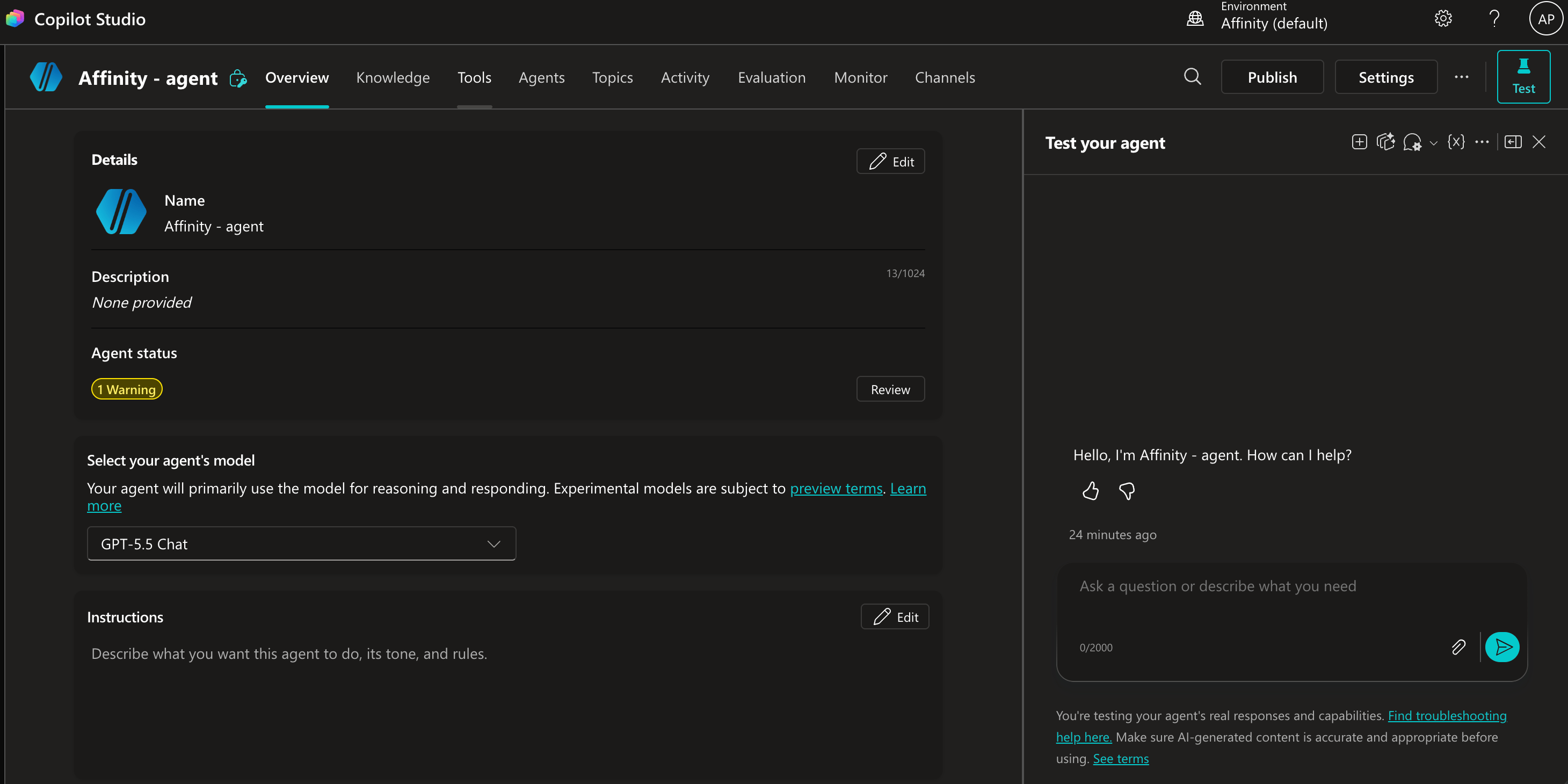
The agent overview page with the Tools tab in the top navigation.
- Click + Add a tool.
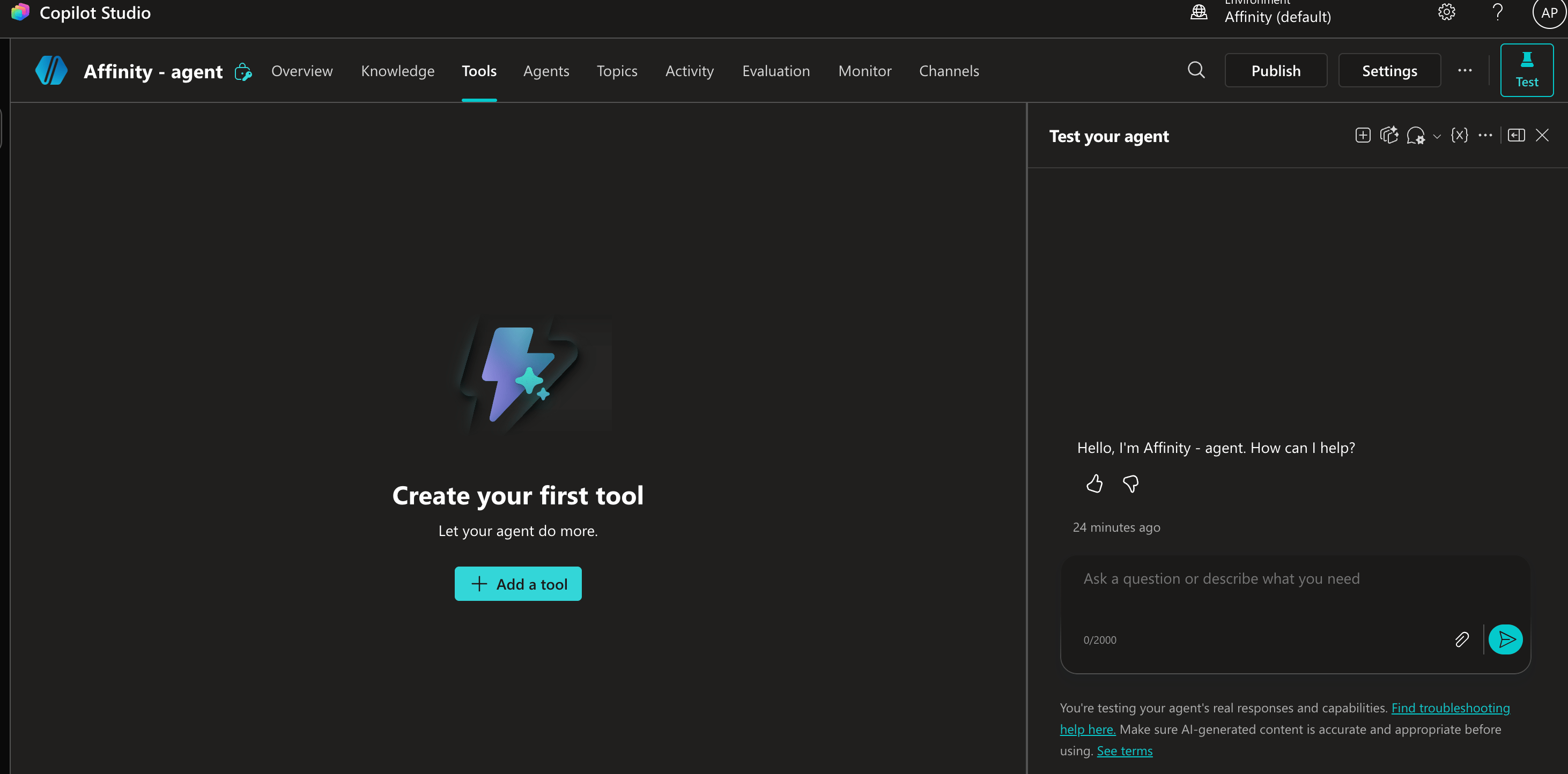
The Tools tab empty state with the Add a tool button.
- In the tool catalog, search for Affinity MCP and select Invoke MCP Server under Model Context Protocol.
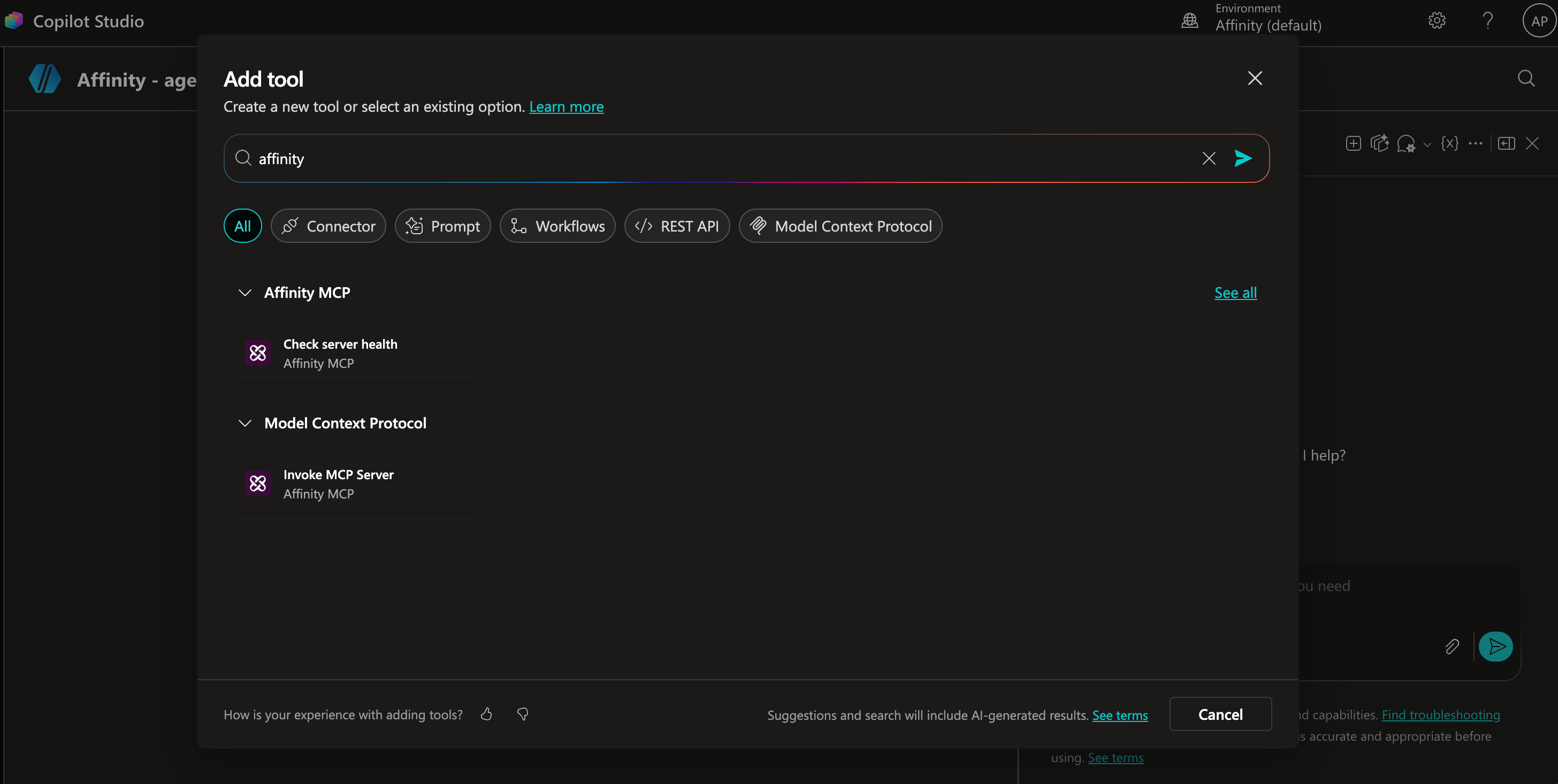
Searching for Affinity MCP in the tool catalog showing Invoke MCP Server under Model Context Protocol.
Step 4: Select your connection
A Select a connection dialog appears showing the Affinity MCP connector.- If you already have an active Affinity connection, select it from the dropdown and skip to step 3.
- If not, click Create new connection. You will be redirected to Affinity — sign in with your Affinity credentials, review the requested permissions, and click Allow. See Authentication for details on the consent screen.
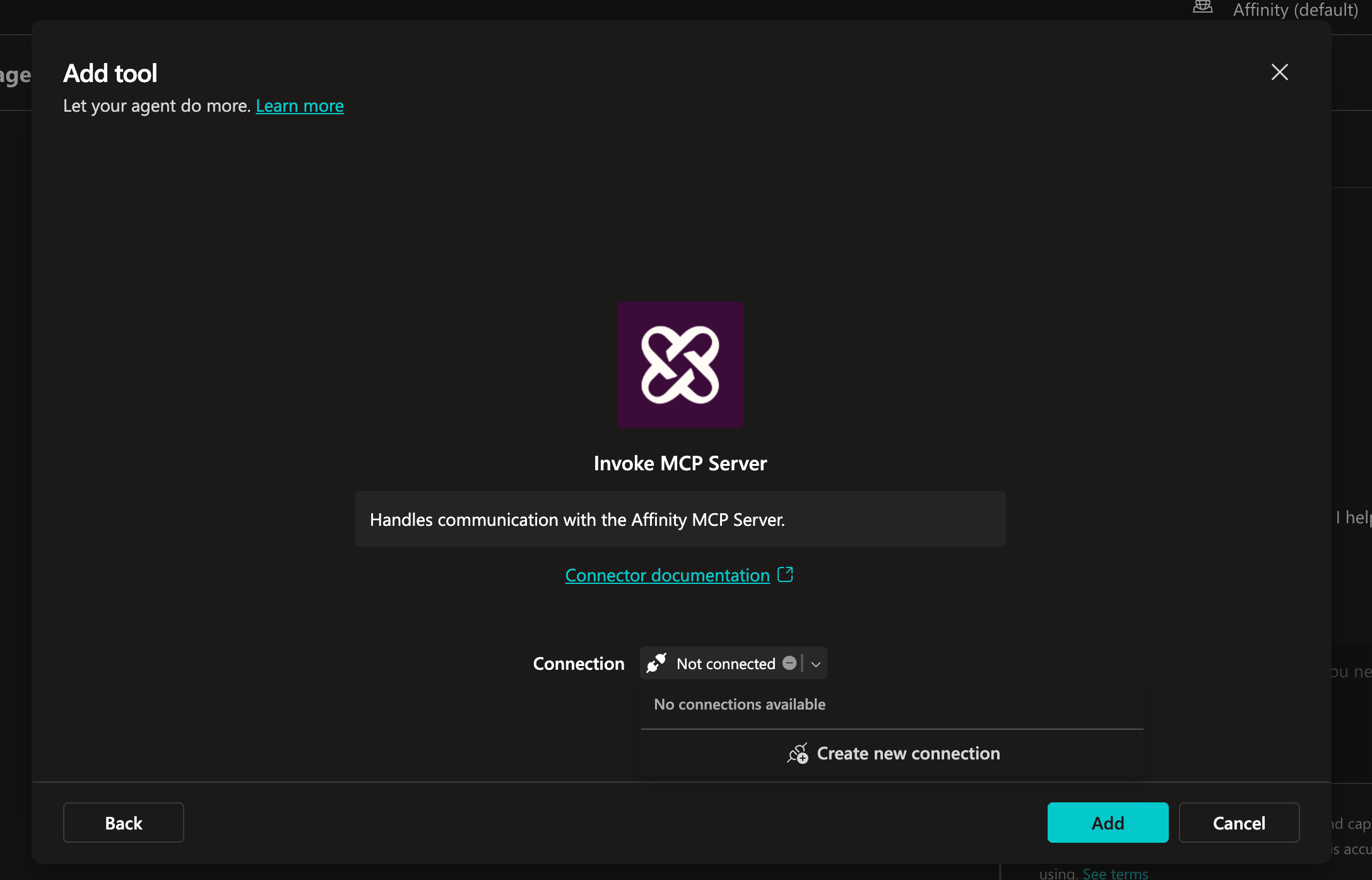
The Add tool dialog showing no existing connections and the Create new connection option.
- After authorizing, you are redirected back to Copilot Studio. The connection appears with a green checkmark. Click Add to attach the tool to your agent.
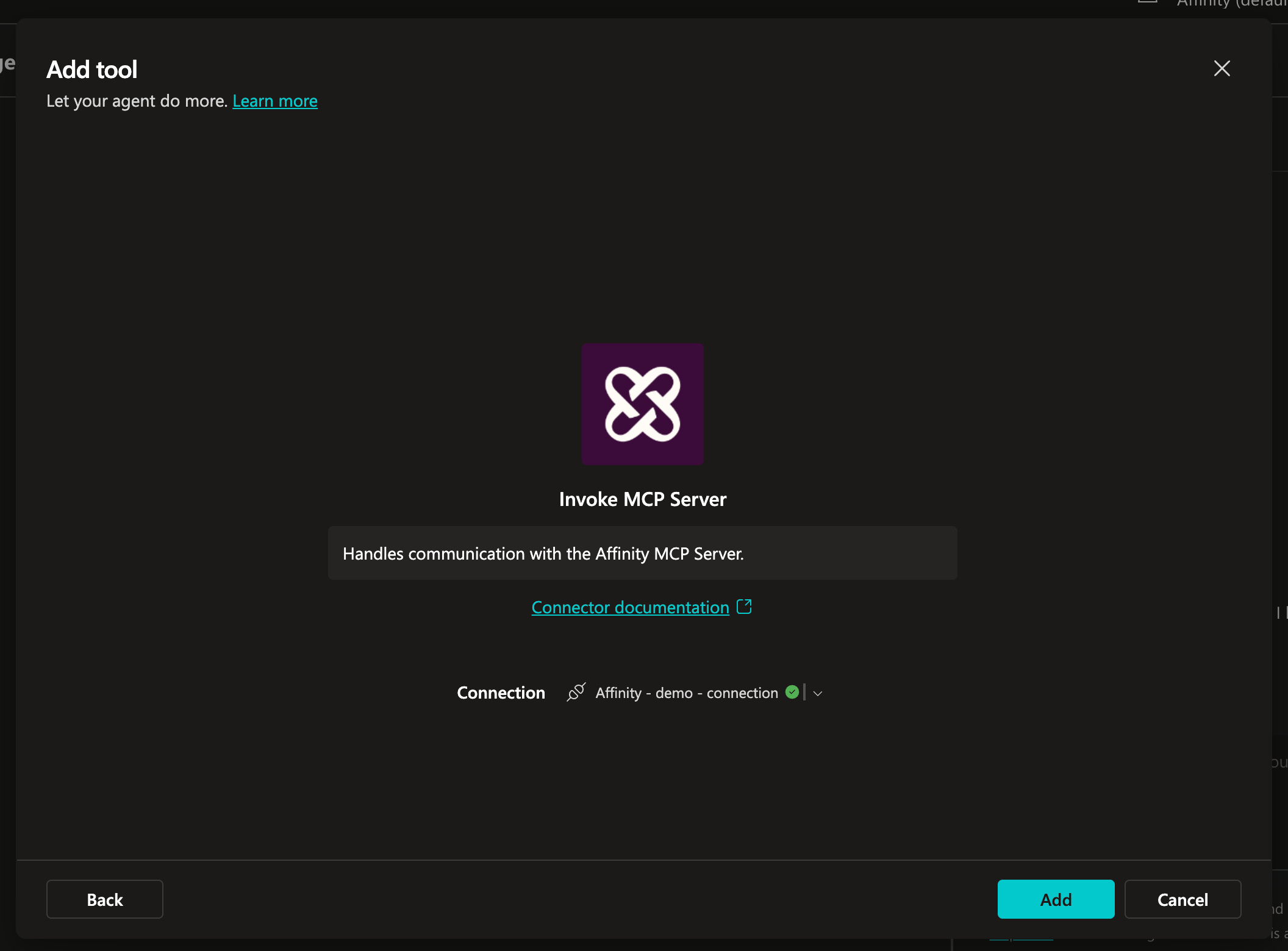
The Add tool dialog after a successful connection, ready to click Add.
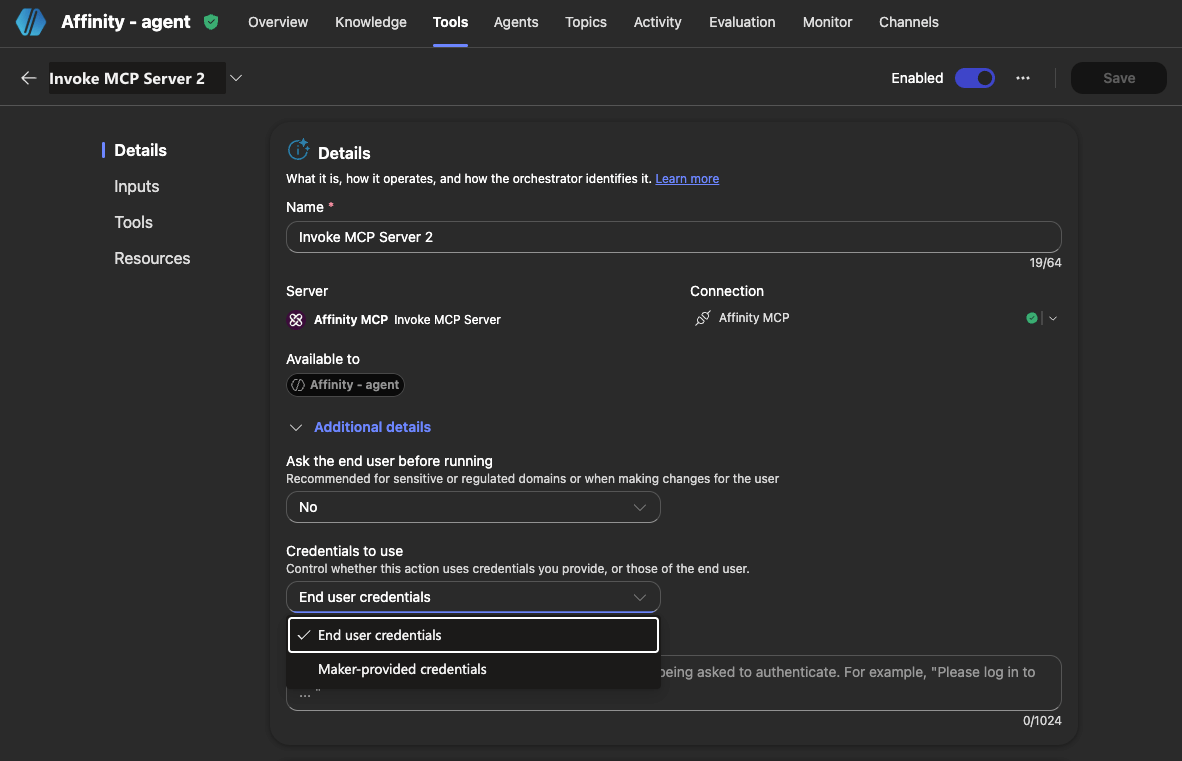
The tool's Additional details panel showing Credentials to use set to End user credentials.
Step 5: Test your connection
In the Test your agent panel, type a prompt such as:- who am i?
- Find 3 companies I emailed in the last 30 days.
- Show me my upcoming meetings.
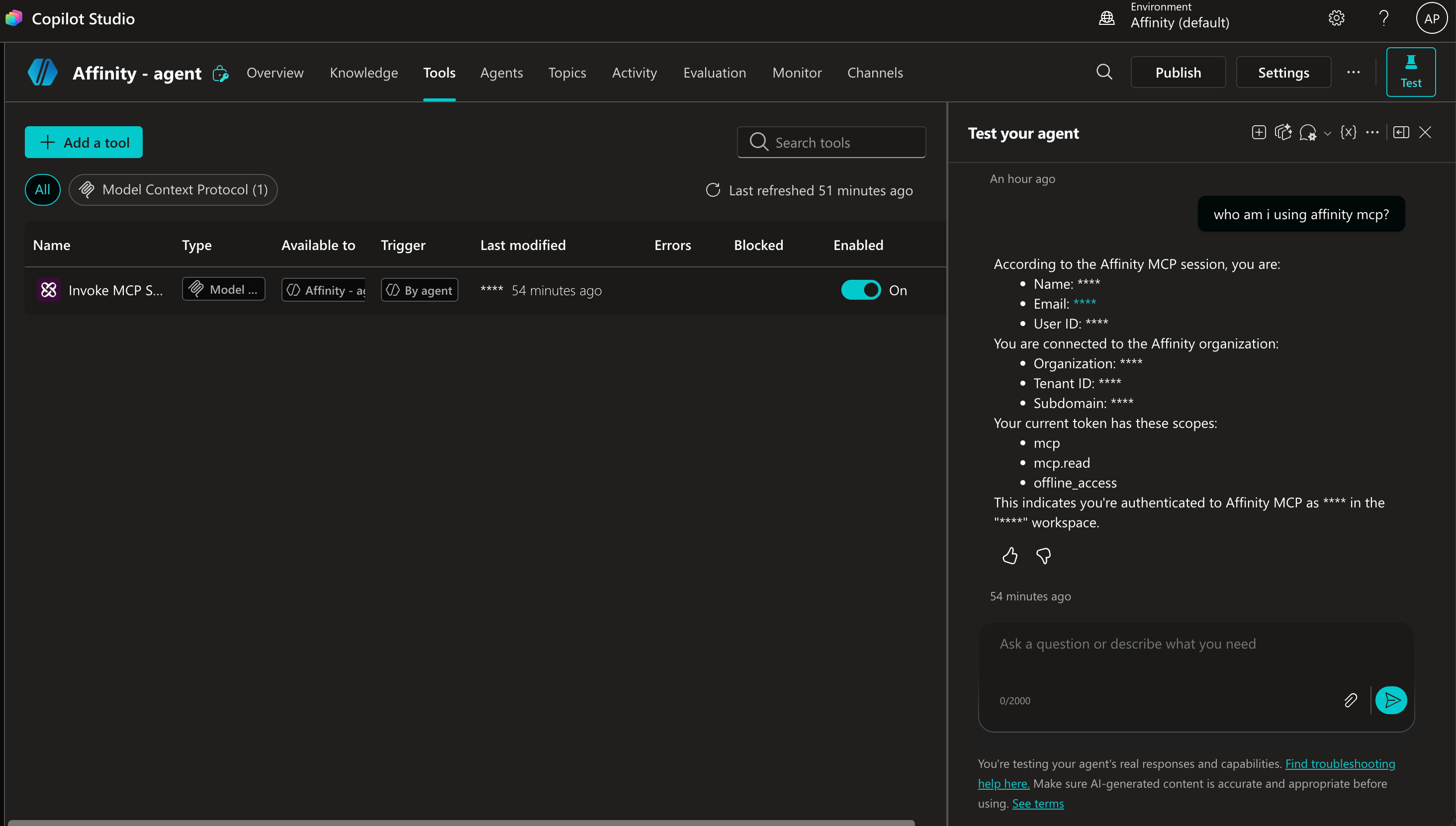
The Test your agent panel showing a successful Affinity MCP response.
Publish your Copilot Studio agent to Microsoft 365
Once your agent is built and tested, you can publish it so it appears in Microsoft 365 Copilot (Teams, Outlook, and the Microsoft 365 app) for you and your organization.Step 1: Open the Evaluation tab
Click the Evaluation tab in the agent top navigation. Running an evaluation before publishing is recommended — it lets you verify your agent’s responses at scale before rolling it out.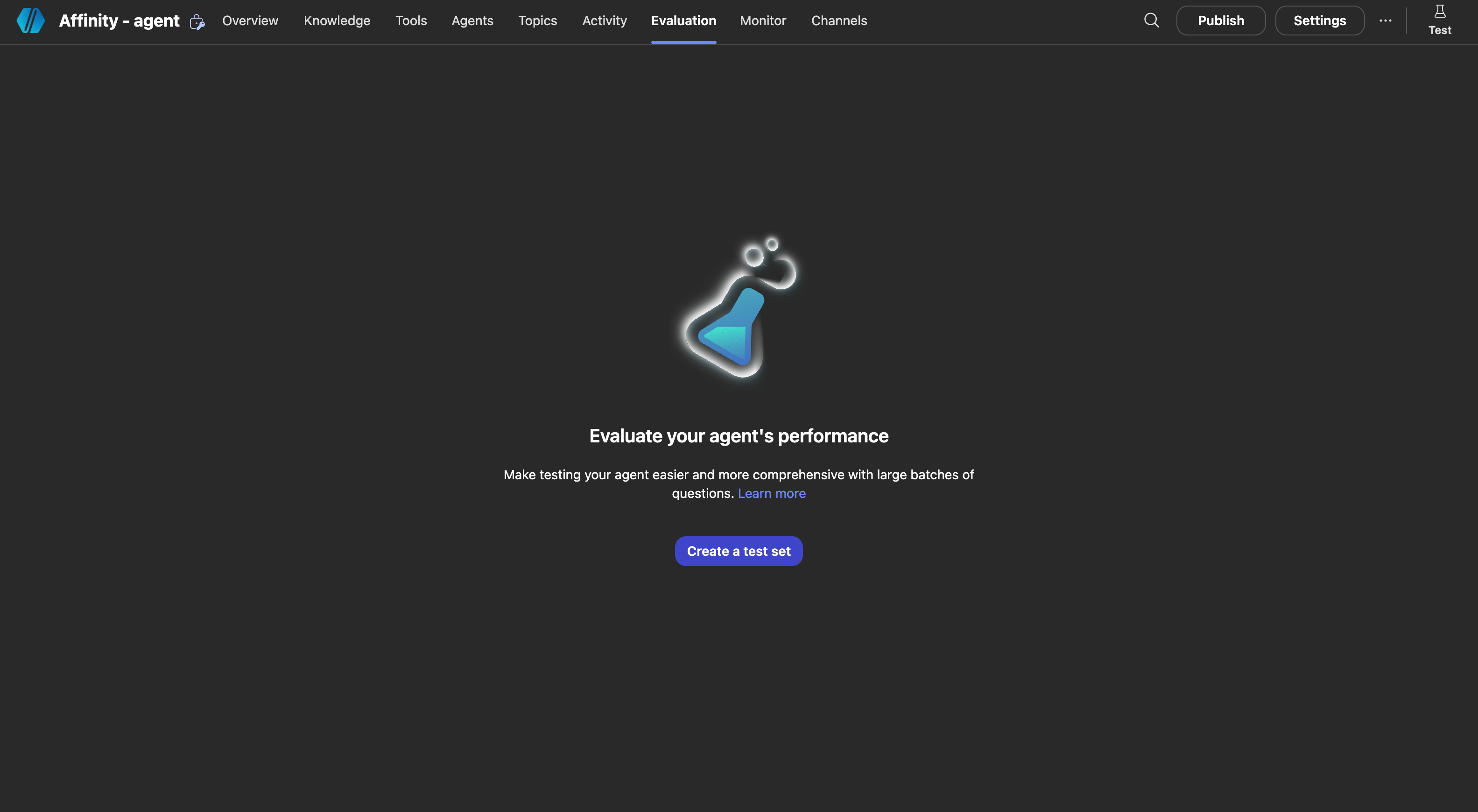
The Evaluation tab in Copilot Studio showing the option to create a test set.
Step 2: Create a test set
Click Create a test set. The new evaluation page opens with options for data type and data source.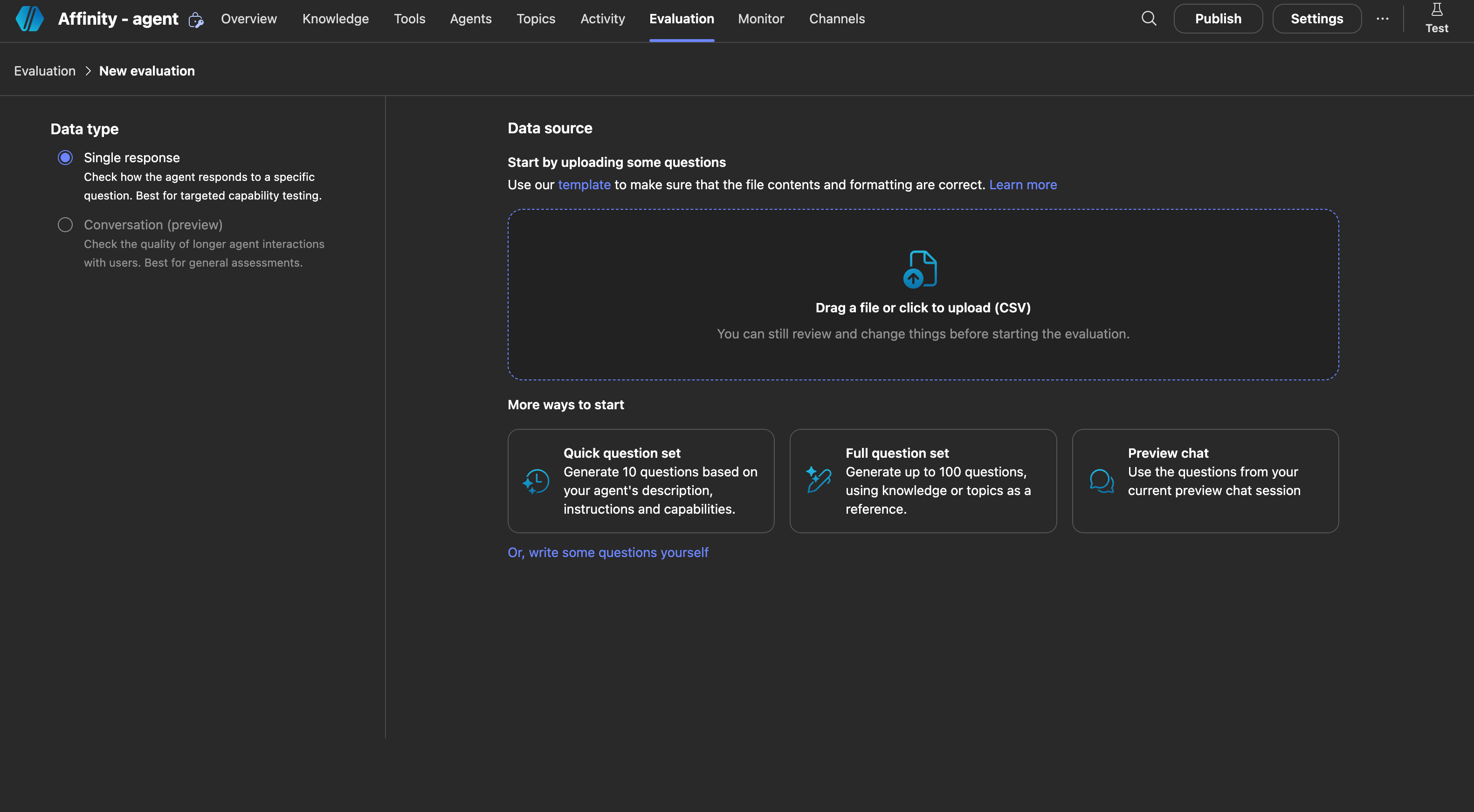
The new evaluation page showing data type and data source options.
Step 3: Select Quick question set
Under More ways to start, click Quick question set. Copilot Studio automatically generates 10 questions based on your agent’s description and capabilities.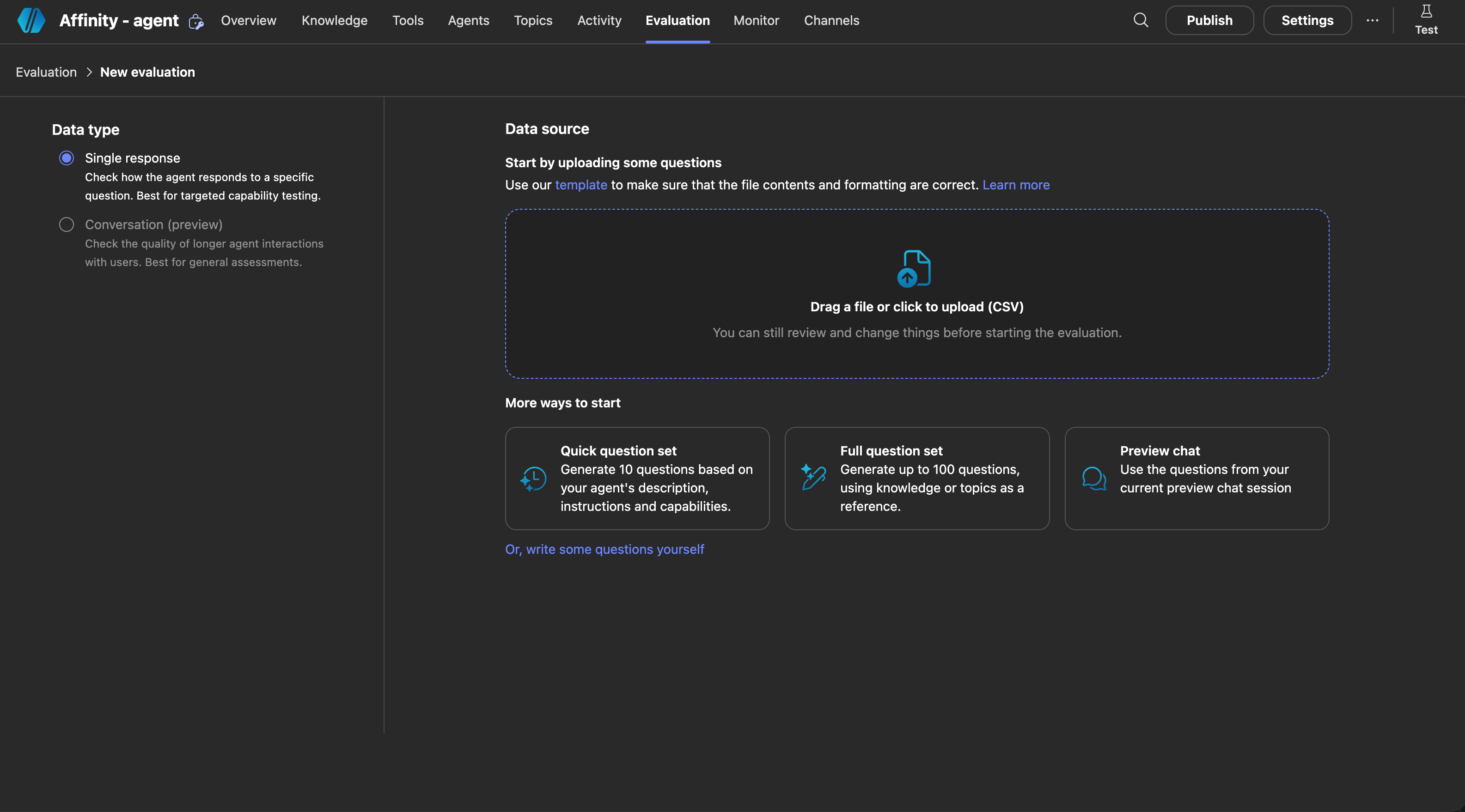
The new evaluation page with the Quick question set option highlighted.
Step 4: Run the evaluation
Review the 10 generated test cases. Give the test set a name (e.g. Evaluate Affinity - agent) and click Run.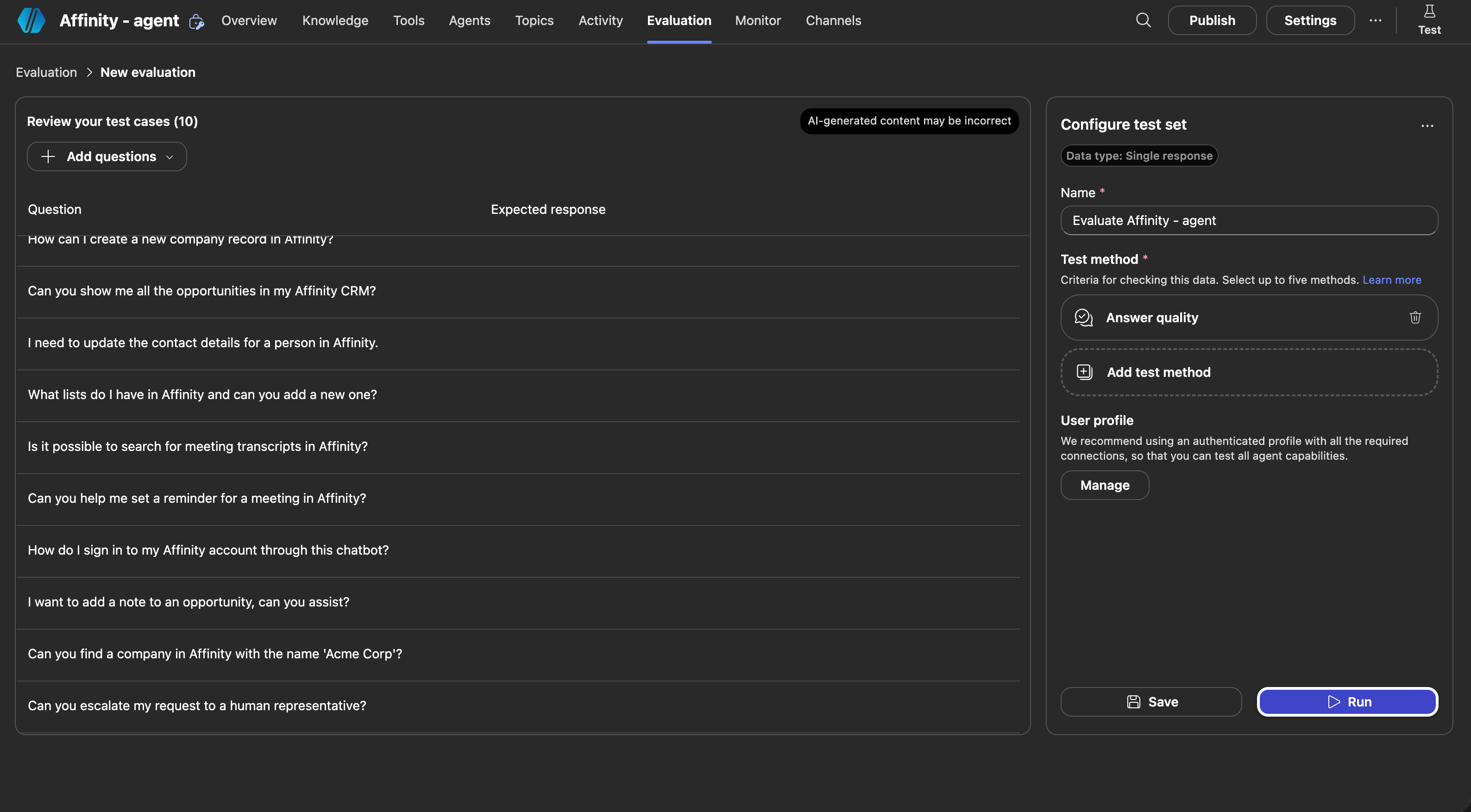
The test case review page showing 10 AI-generated questions and the Run button.
Step 5: Confirm results and publish
Once the run completes, review the results. Then click Publish in the top-right corner of the agent.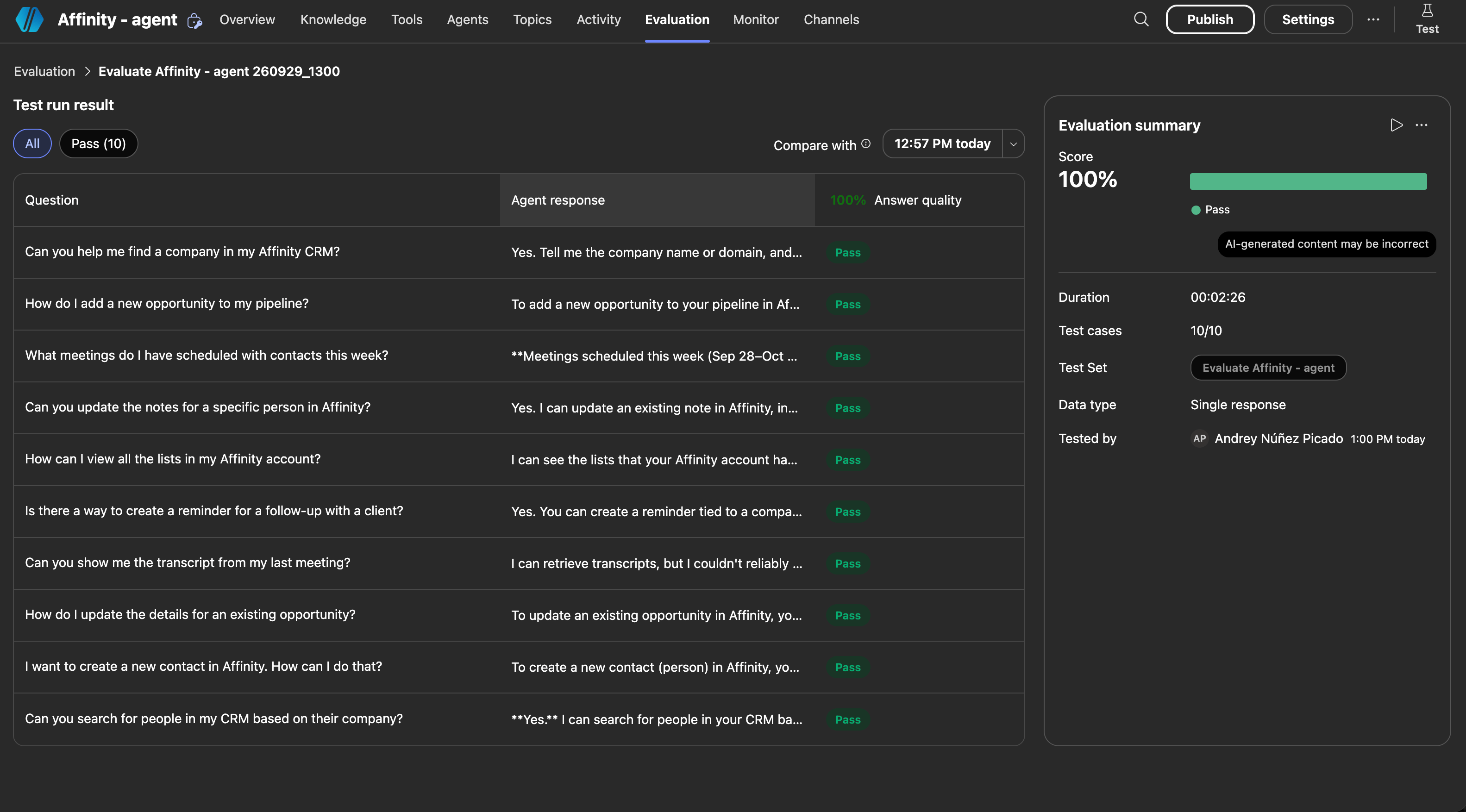
The test run results showing 10/10 passing with a 100% answer quality score.
Submit to your org catalog
After publishing, submit the agent for admin approval so it appears org-wide in Microsoft 365.Step 1: Go to Channels
Click the Channels tab in the agent top navigation.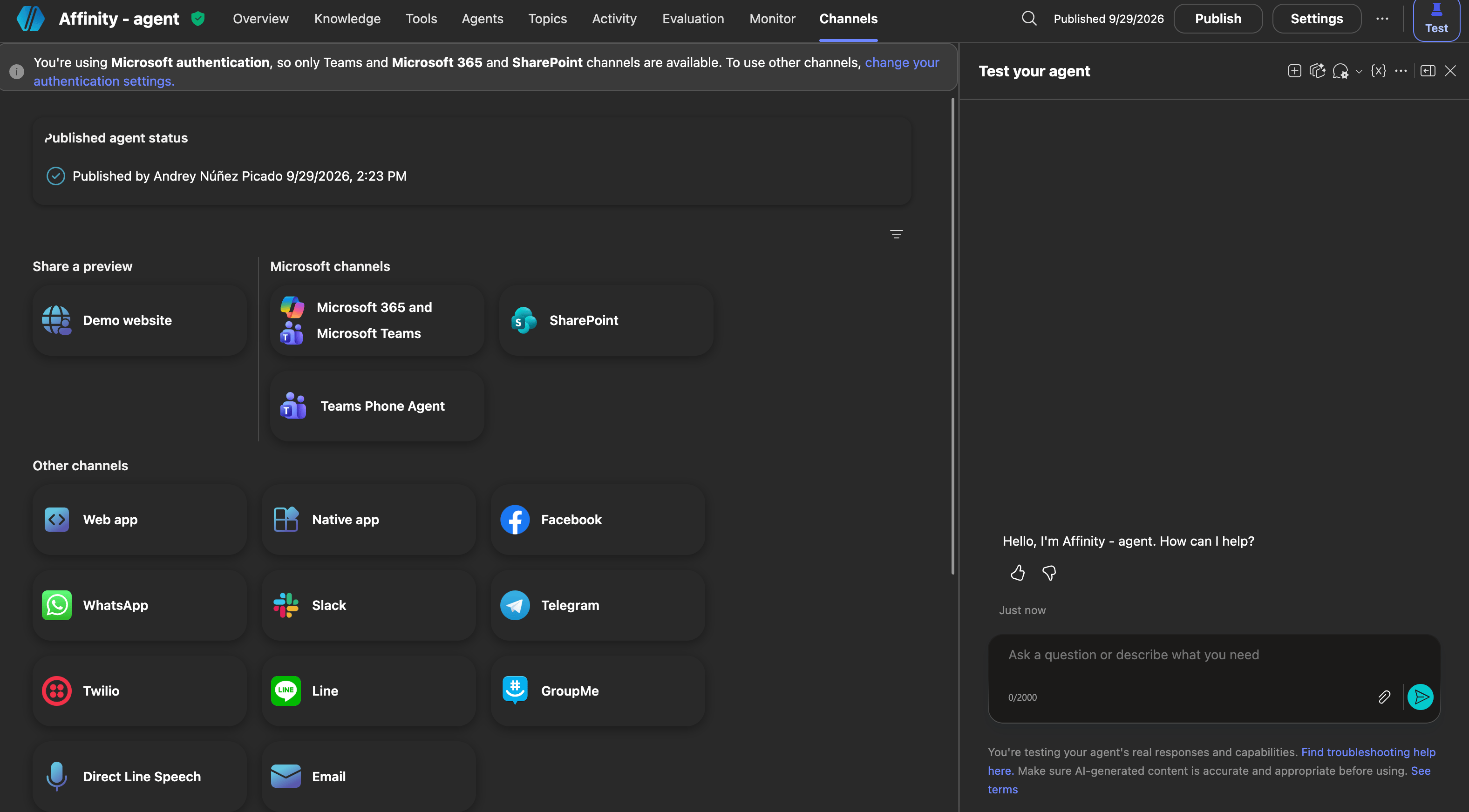
The Channels tab showing published agent status and available Microsoft channels.
Step 2: Select Microsoft 365 and Microsoft Teams
Click Microsoft 365 and Microsoft Teams. A panel opens on the right showing the agent preview and availability options.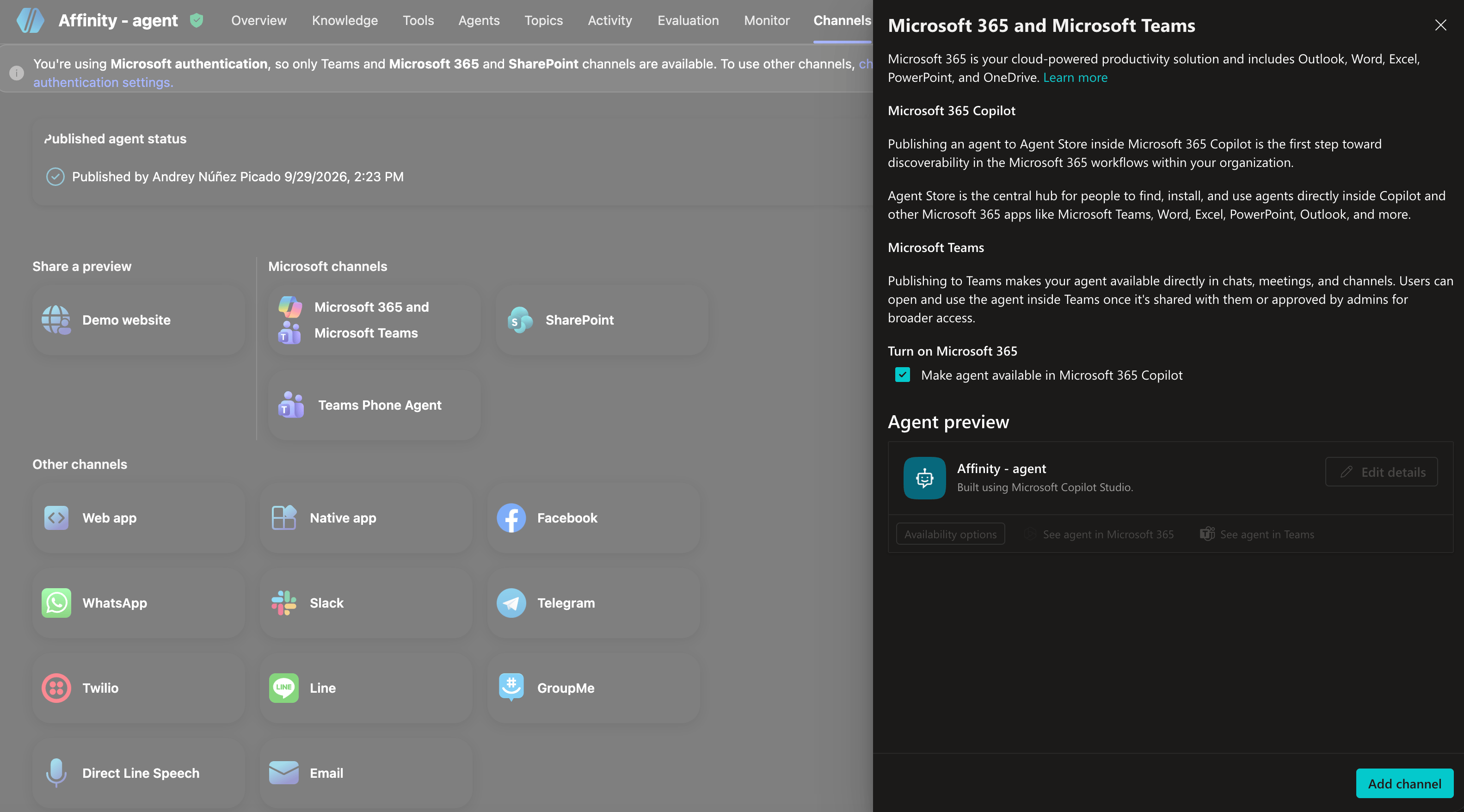
The Microsoft 365 and Microsoft Teams channel panel showing the Affinity agent preview.
Step 3: Add the channel
Click Add channel at the bottom of the panel. A The channel was added confirmation appears at the top of the screen.Step 4: Open Availability options
Click Availability options in the agent preview card.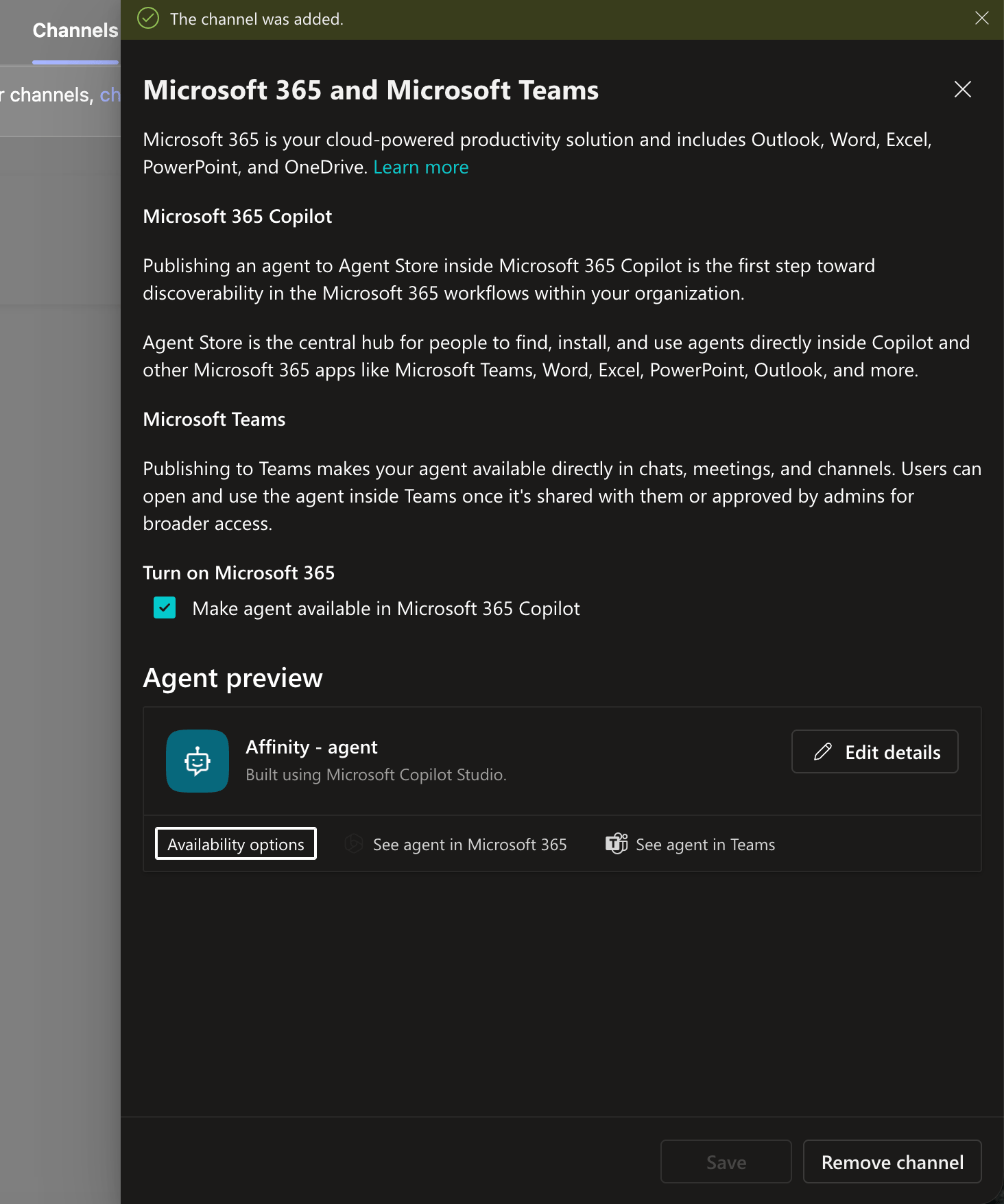
The Microsoft 365 and Microsoft Teams panel after the channel is added, with Availability options highlighted.
Step 5: Select Show to everyone in my org
Select Show to everyone in my org. This submits the agent for admin approval so it appears in the Built by your org section of the Microsoft 365 agent store.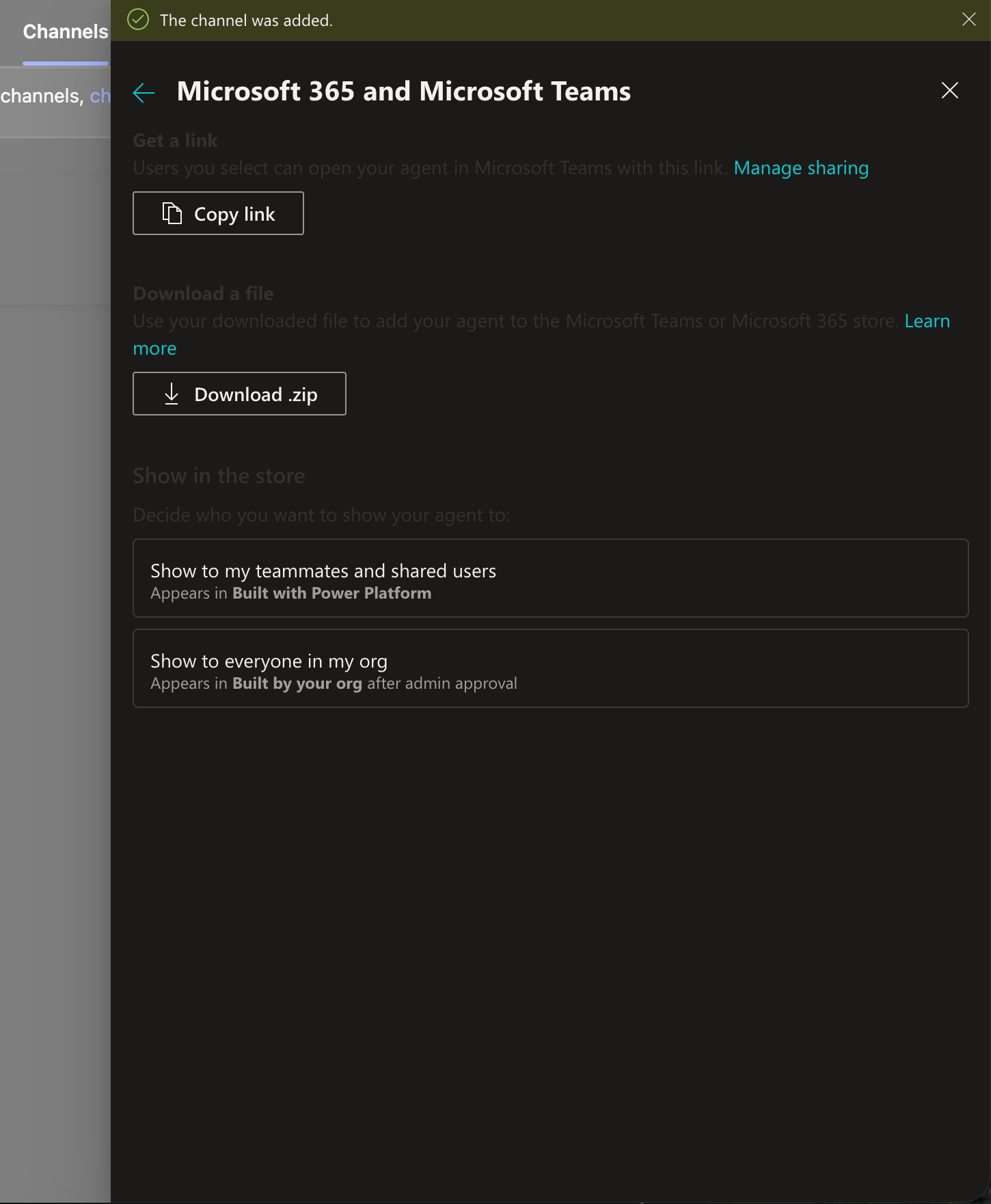
The Availability options panel showing Show to everyone in my org.
Step 6: Submit to org catalog
Review the checklist on the Show in Teams app store for org screen, then click Submit to org catalog. The submission goes to your Microsoft 365 admin for approval before the agent appears org-wide.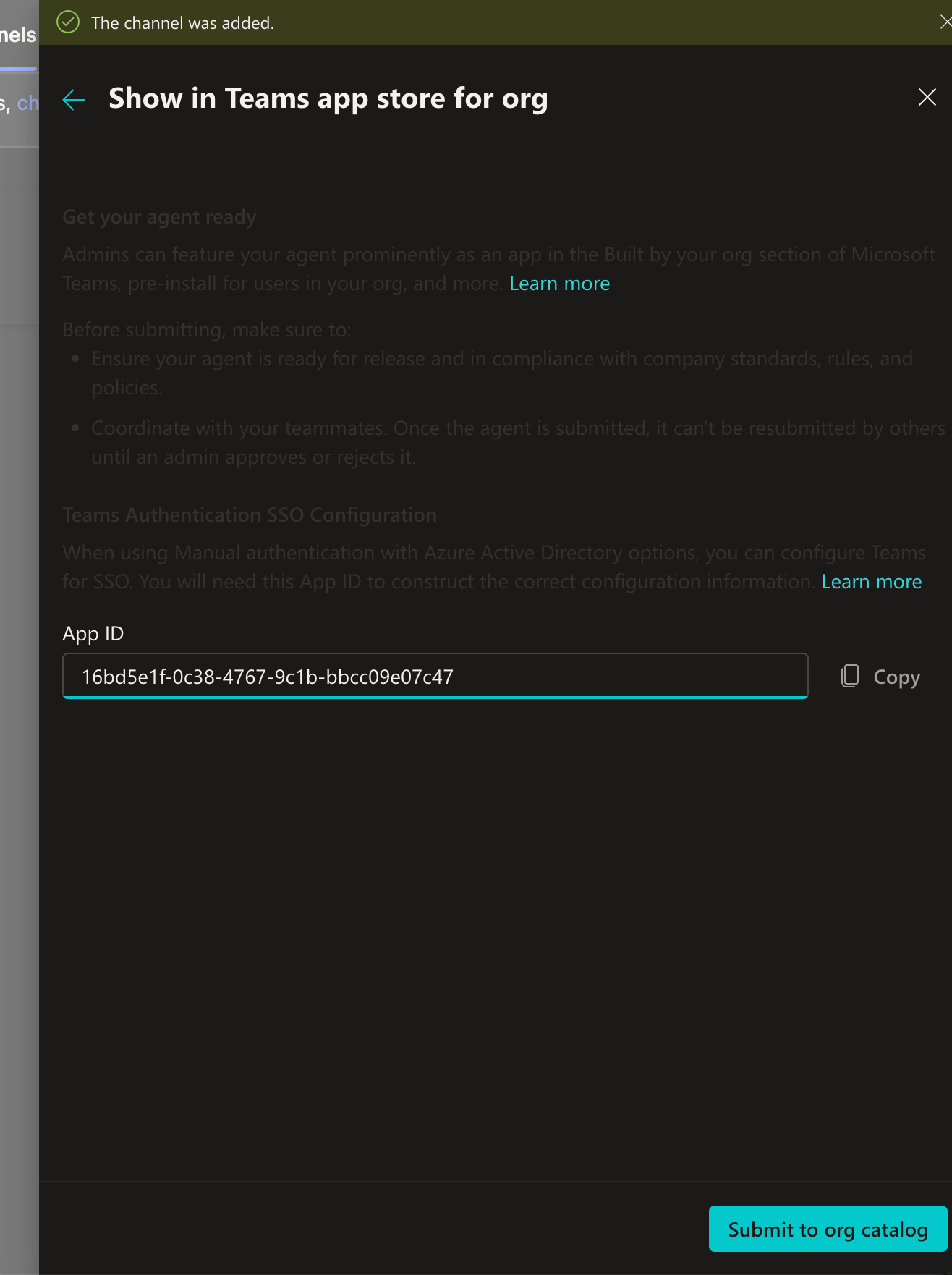
The Show in Teams app store for org screen with the Submit to org catalog button.
Approve the agent (Microsoft 365 admin)
A Microsoft 365 admin must approve the submission before the agent appears org-wide. Go to admin.cloud.microsoft and navigate to Agents → All agents.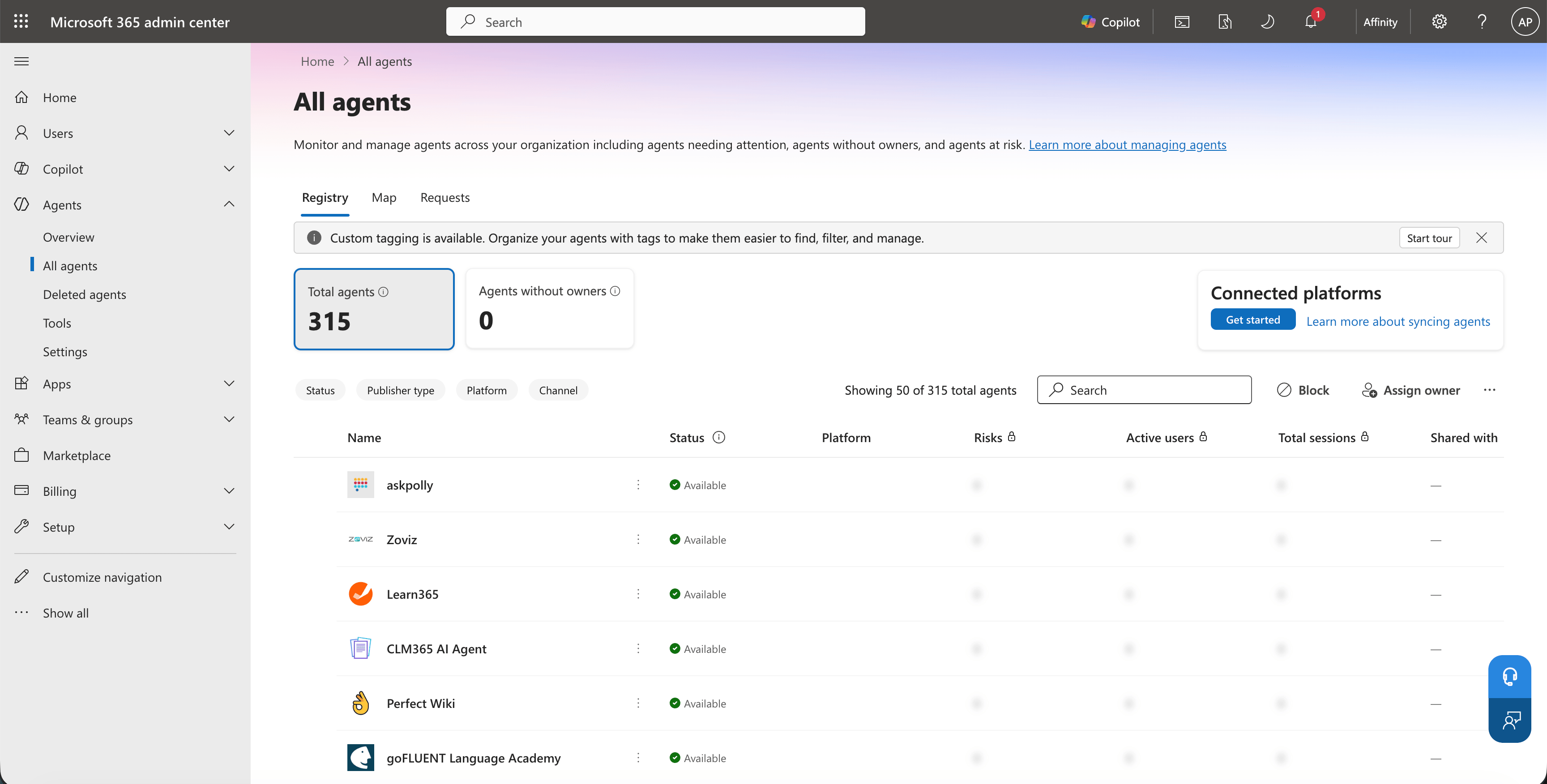
The All agents page in the Microsoft 365 admin center showing the agent registry.
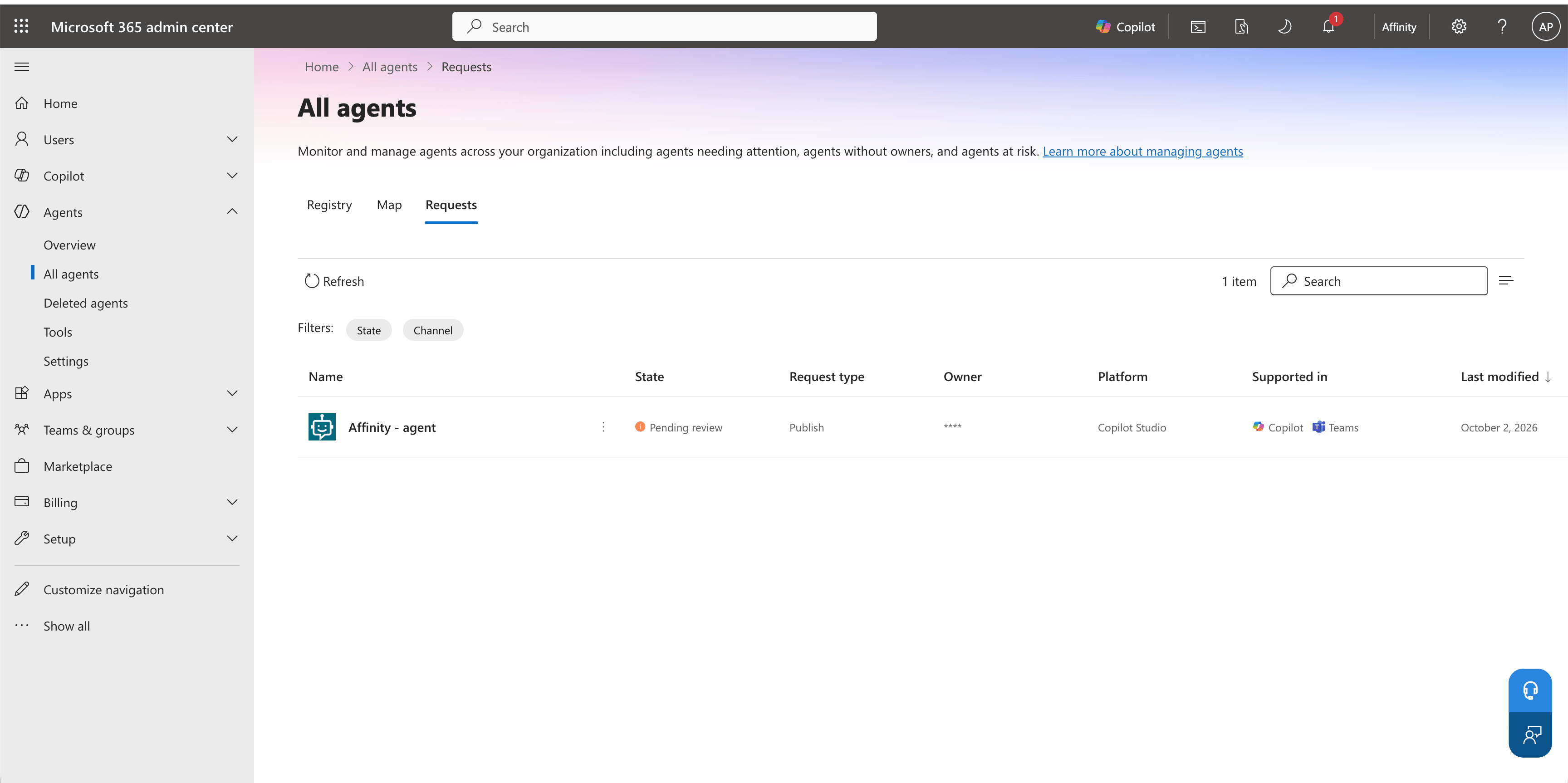
The Requests tab showing the Affinity agent submission pending review.
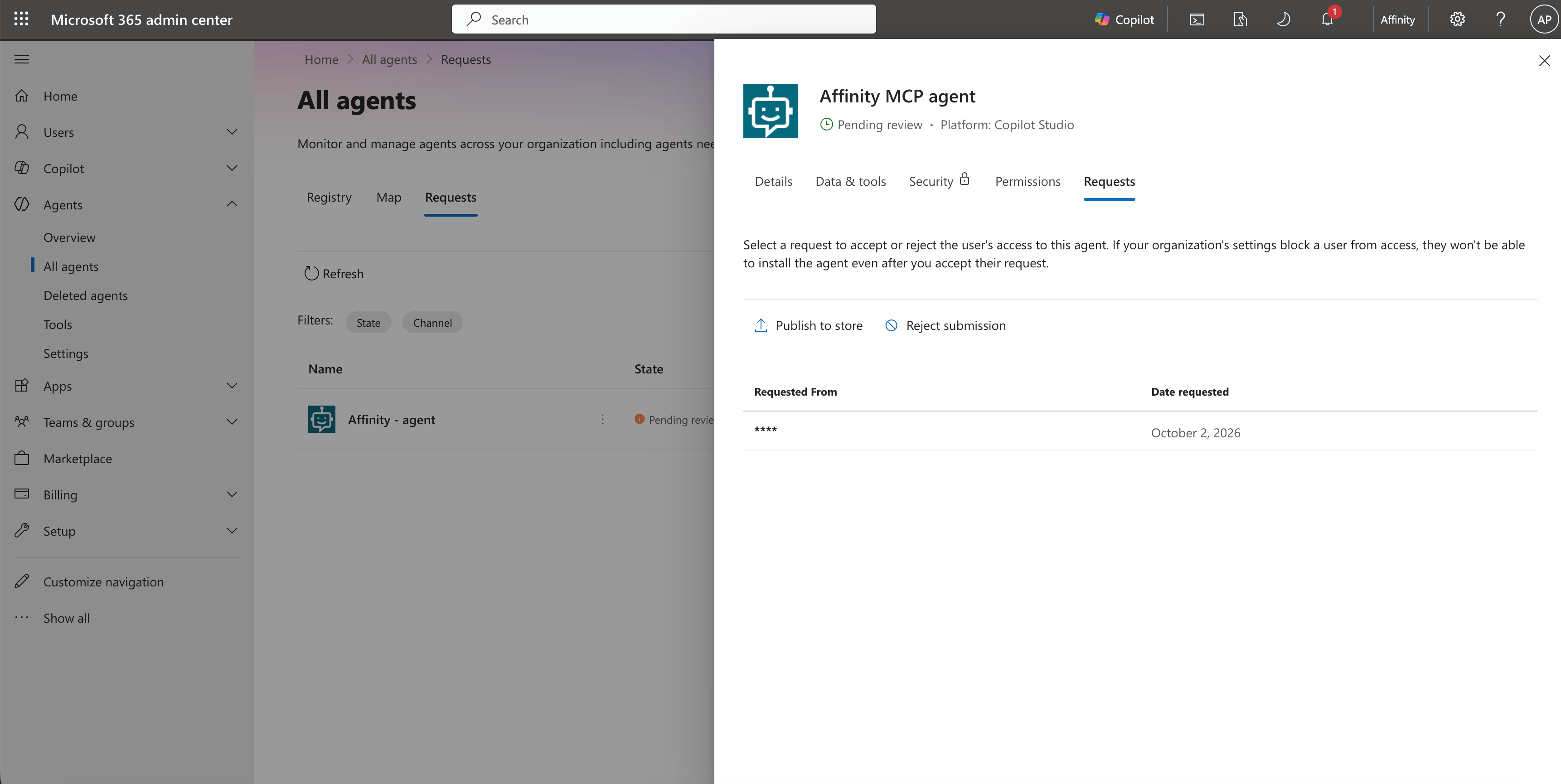
The agent detail panel showing the Publish to store action.
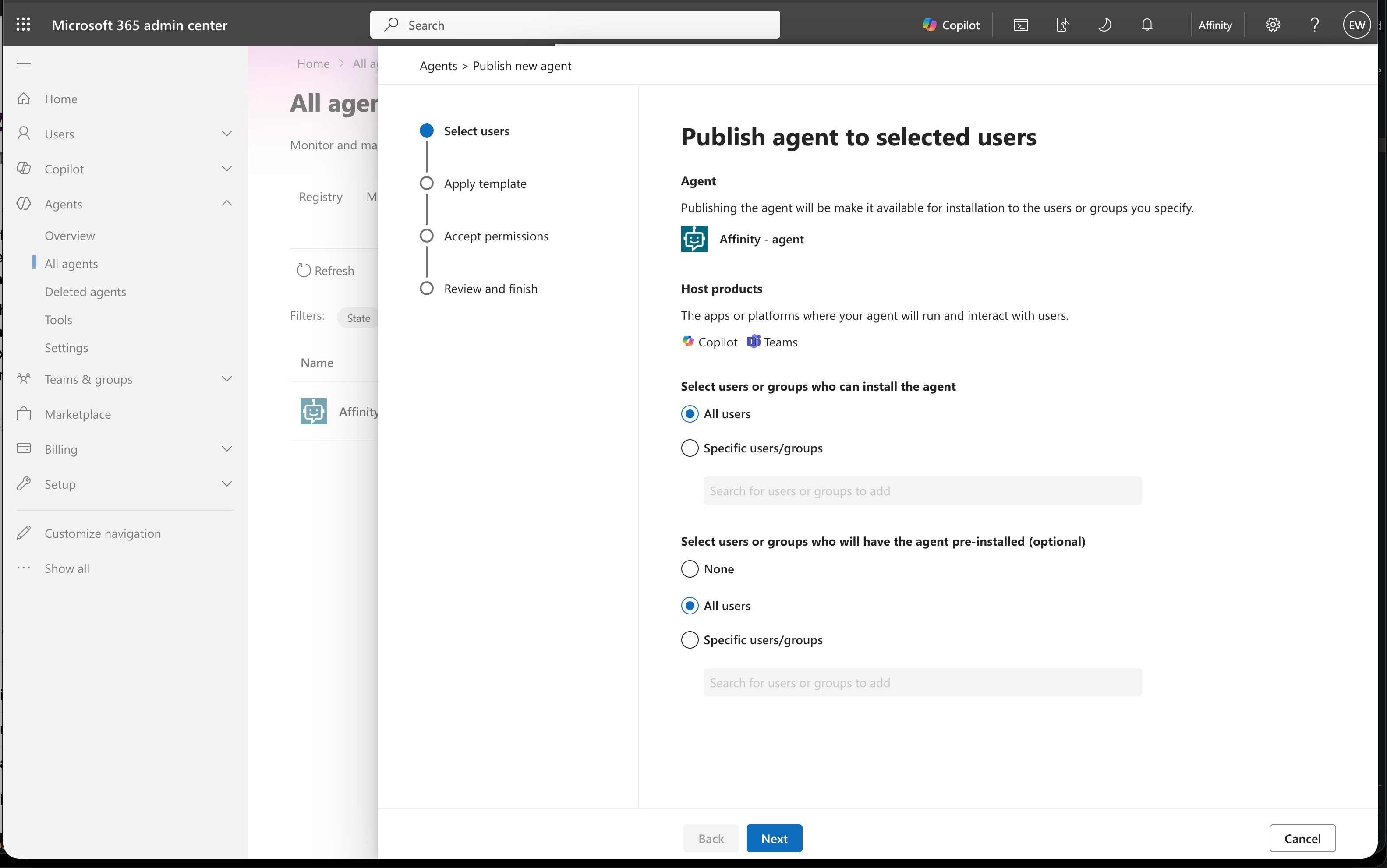
The Select users step of the publish wizard with All users selected for install and pre-install.
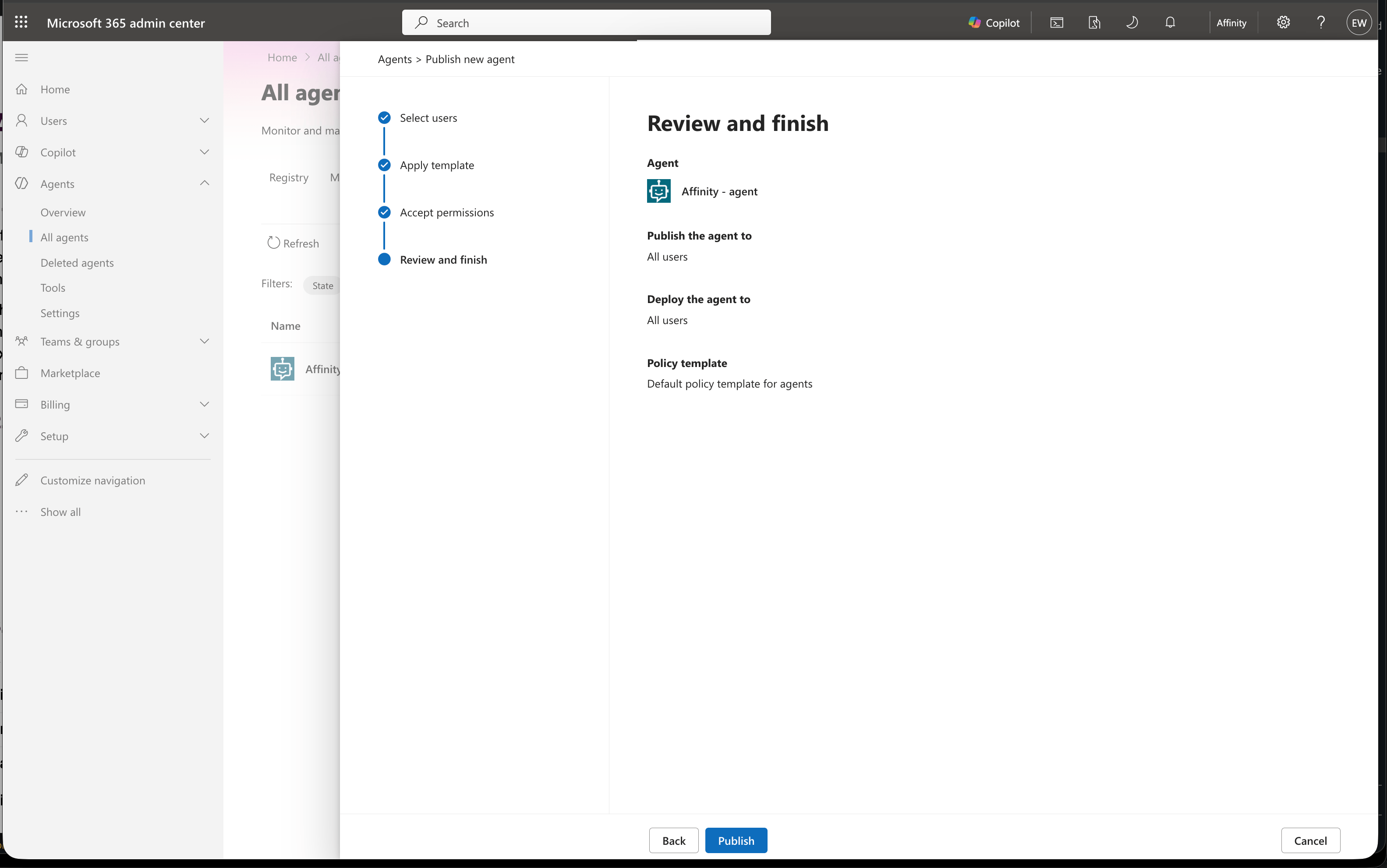
The Review and finish step showing the publish summary before confirming.
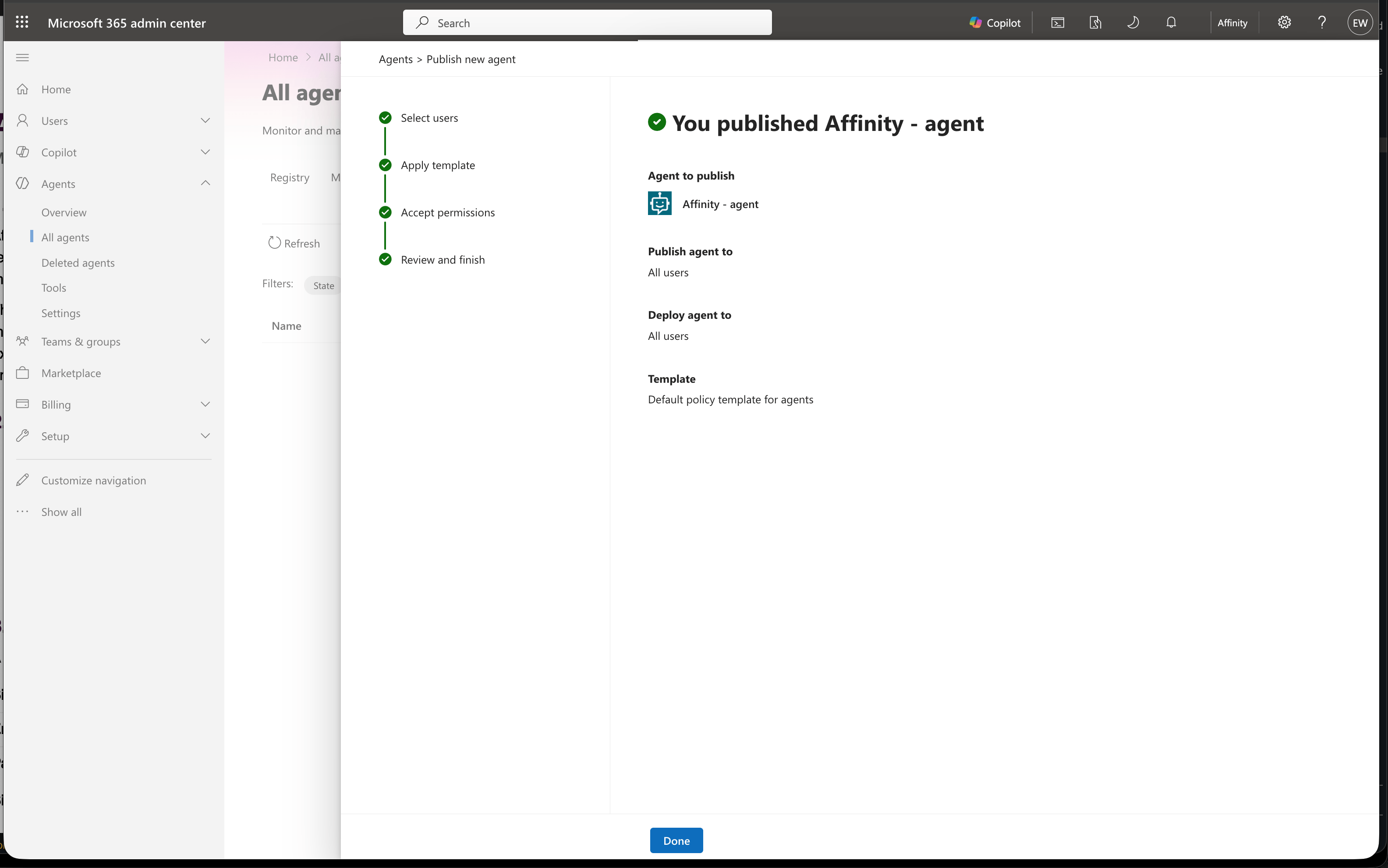
The publish confirmation screen showing the agent was successfully published to all users.
Verify in Microsoft Teams
Step 1: Find and open your agent in Microsoft Teams
Go to teams.microsoft.com, click Agents in the left sidebar, then click More agents. Search for Affinity (or the name you gave your agent). The agent appears in the results.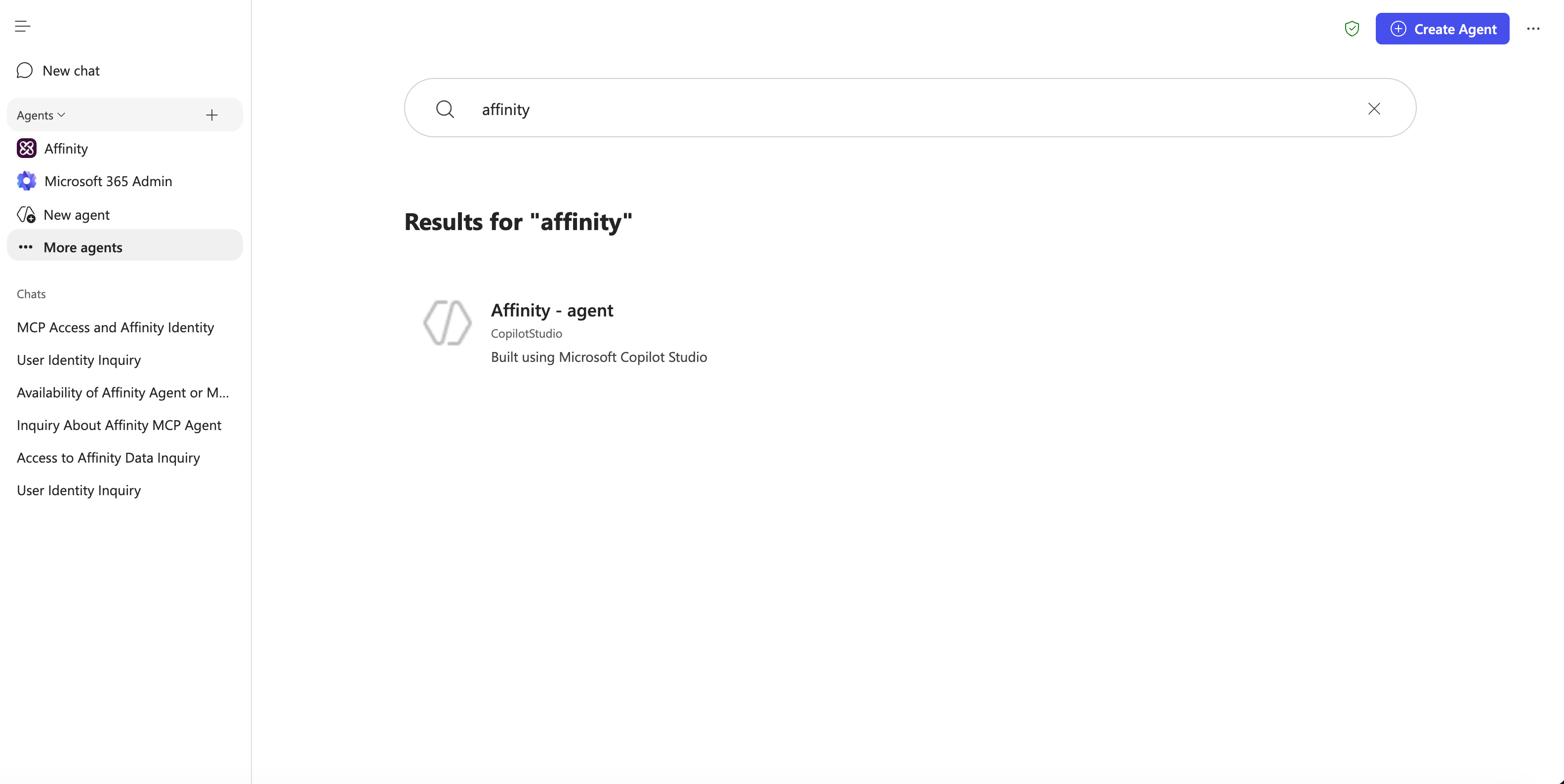
Searching for the Affinity agent in the Microsoft Teams More agents catalog.
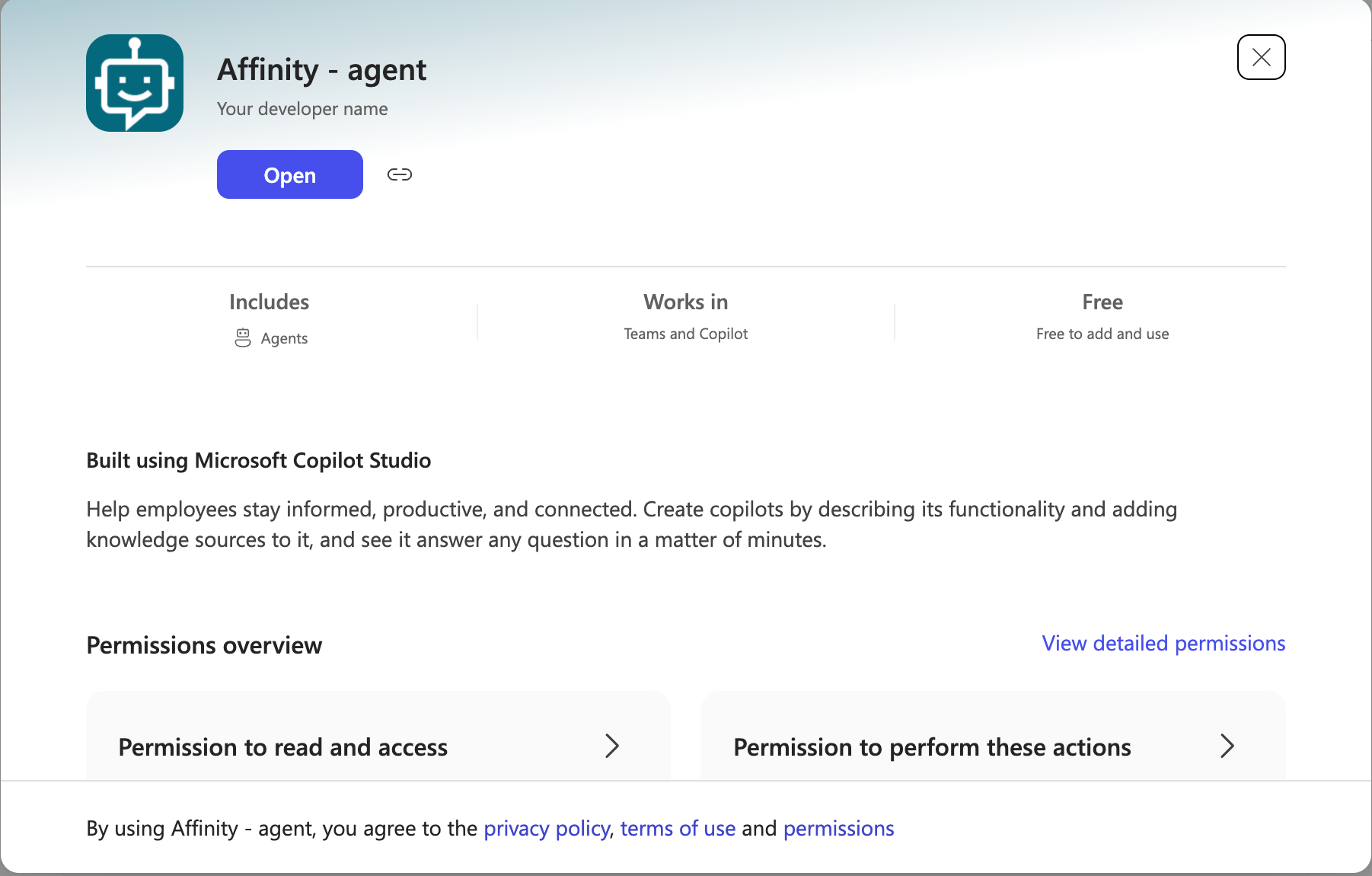
The Affinity agent tile showing the Open button and permissions overview.
Step 2: Test the agent
In the chat, try a prompt such as who am i? to confirm the agent is connected to Affinity and returning live data.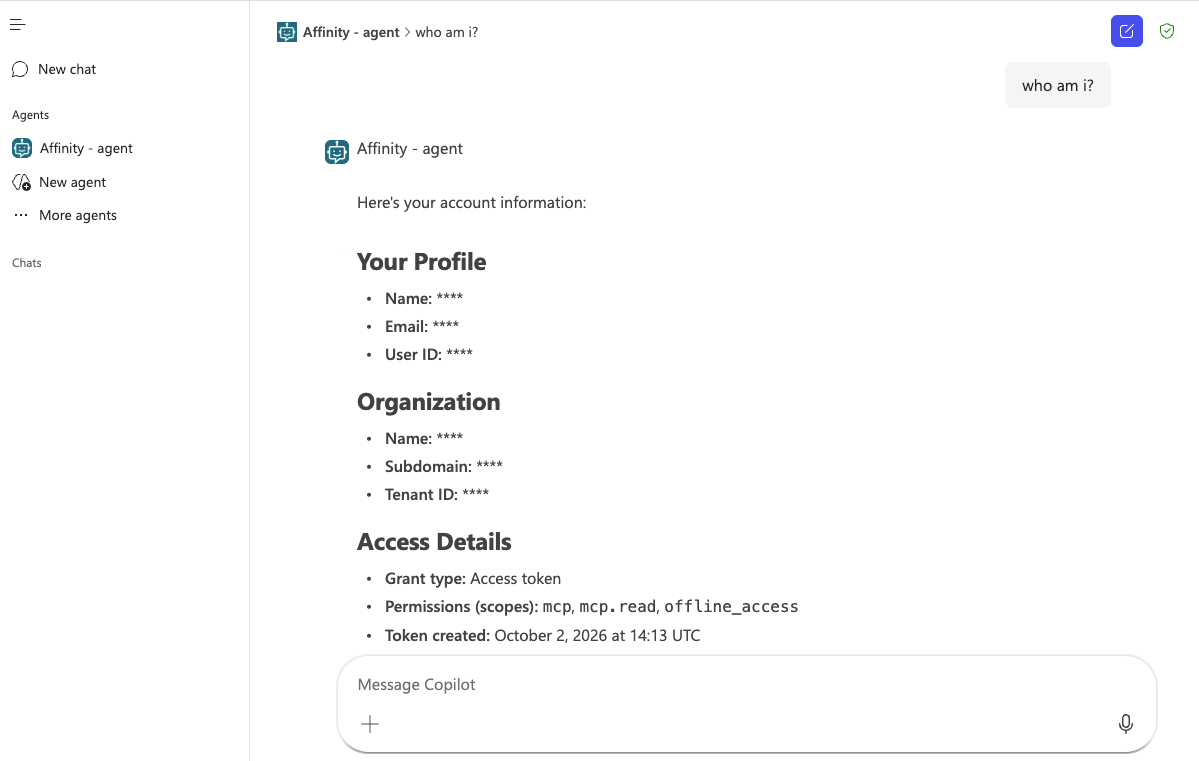
The Affinity agent in Microsoft Teams responding to 'who am i' with profile and organization data from Affinity.
Verify in Microsoft Copilot
Step 1: Open the agent in Microsoft Copilot
Go to copilot.cloud.microsoft. The approved agent appears under Agents in the left sidebar. Click it to open the chat.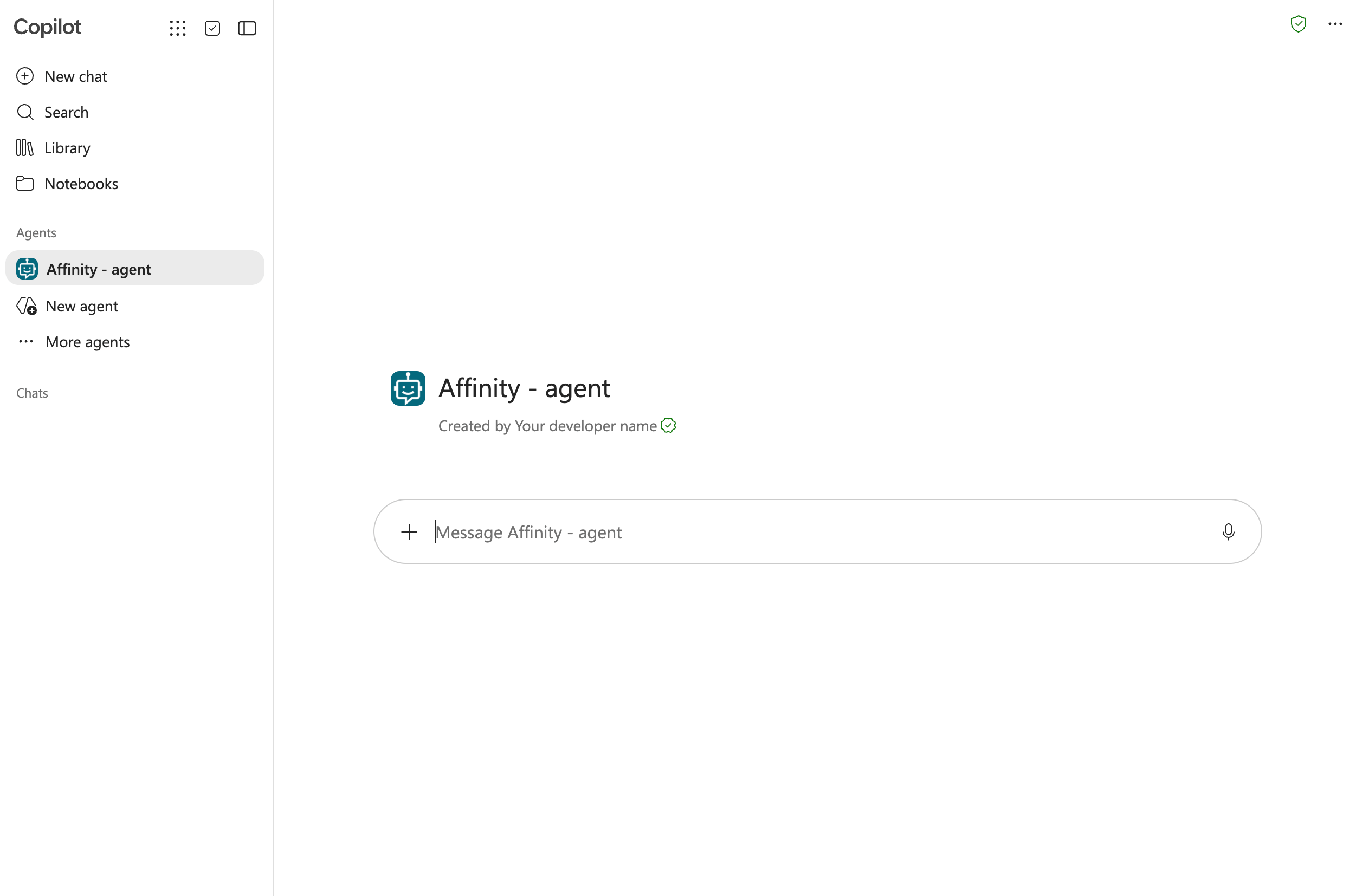
Microsoft Copilot showing the Affinity agent in the left sidebar under Agents.
Step 2: Test the agent
In the chat, try a prompt such as who am i? to confirm the agent is connected to Affinity and returning live data.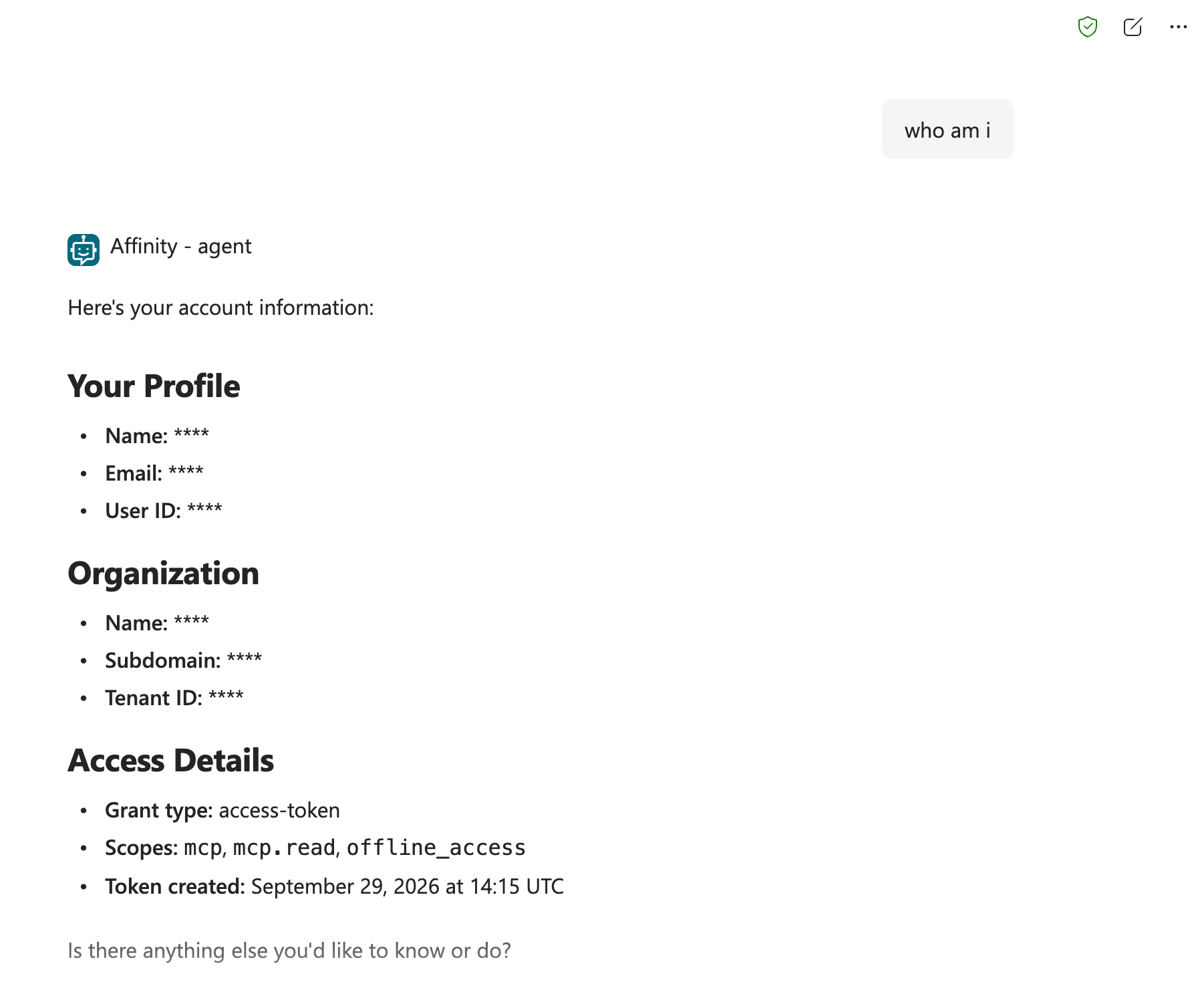
Microsoft Copilot responding to 'who am i' with profile, organization, and access details from Affinity.
Copilot Studio — API Key
Use this path if you prefer not to use the certified connector. Generate an Affinity API key first — see Authentication. Setup is performed by the agent author using Copilot Studio’s MCP onboarding wizard.- In Copilot Studio, open your agent and go to the Tools tab.
- Click + Add a tool, then select Add new MCP. The MCP wizard appears.
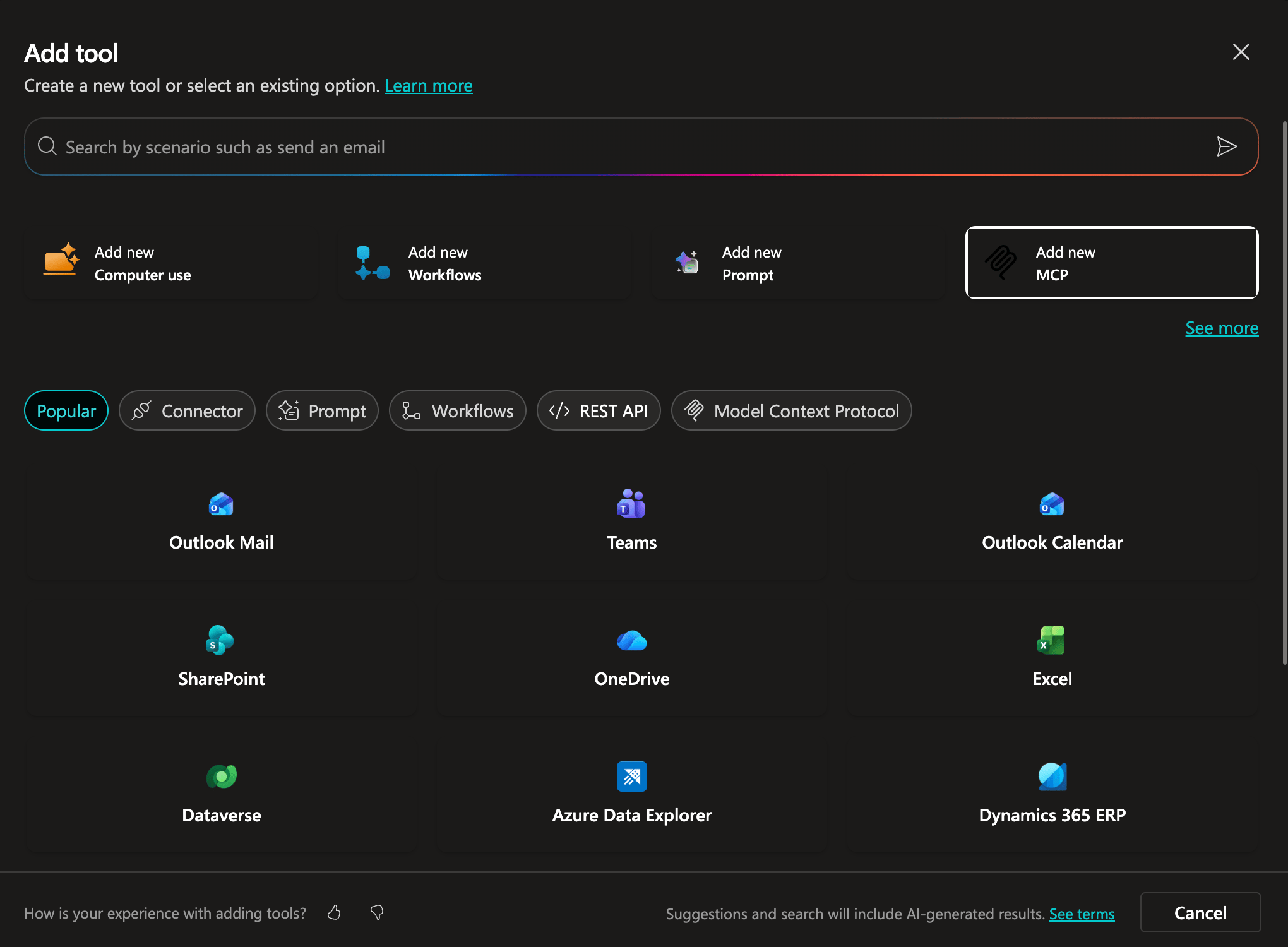
The Add tool dialog with the Add new MCP option.
- Fill in the server details:
- Server name:
Affinity - Server description:
Use this server to search, read, create, and update records in the user's Affinity CRM, including companies, people, opportunities, lists, fields, notes, meetings, meeting transcripts, and reminders. - Server URL:
https://mcp.affinity.co/mcp
- Server name:
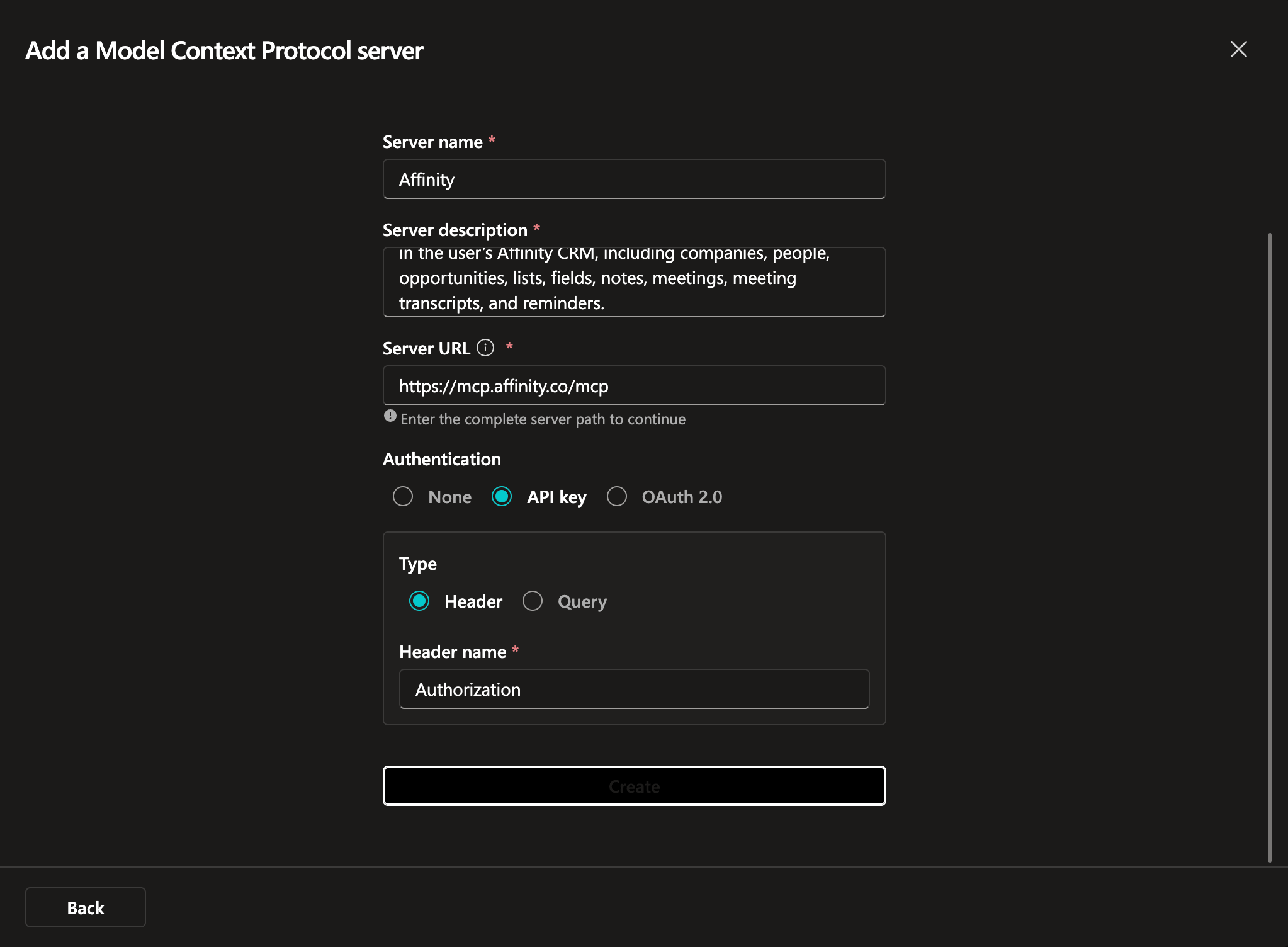
The Add a Model Context Protocol server form filled in with Affinity server details.
-
For Authentication, select API key and set:
- Type: Header
- Header name:
Authorization
- Click Create. On the Add tool dialog that appears, click Create new connection.
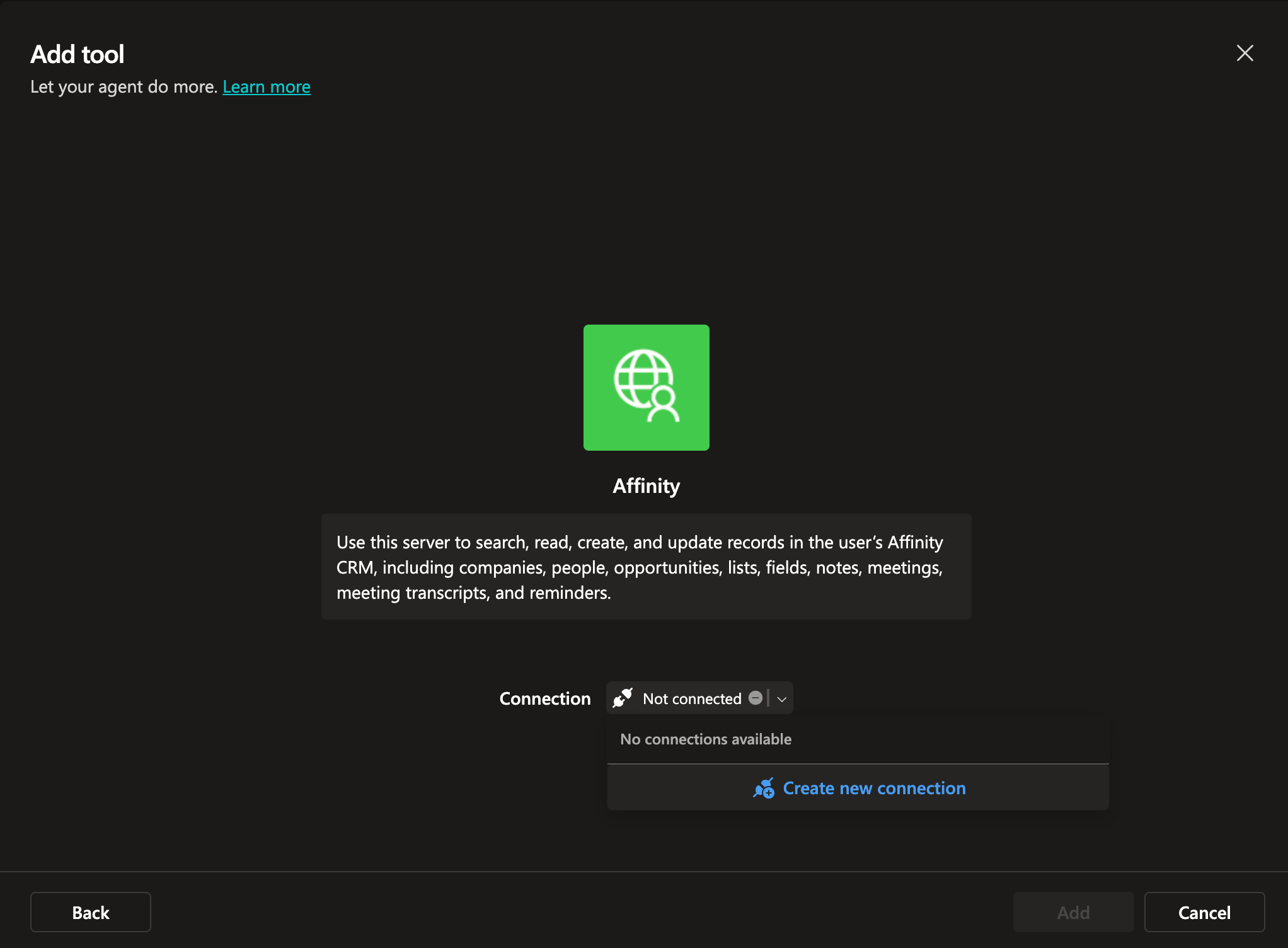
The Add tool dialog prompting to create a new connection.
-
When prompted, enter the full bearer token including the
Bearerprefix as the API key value:
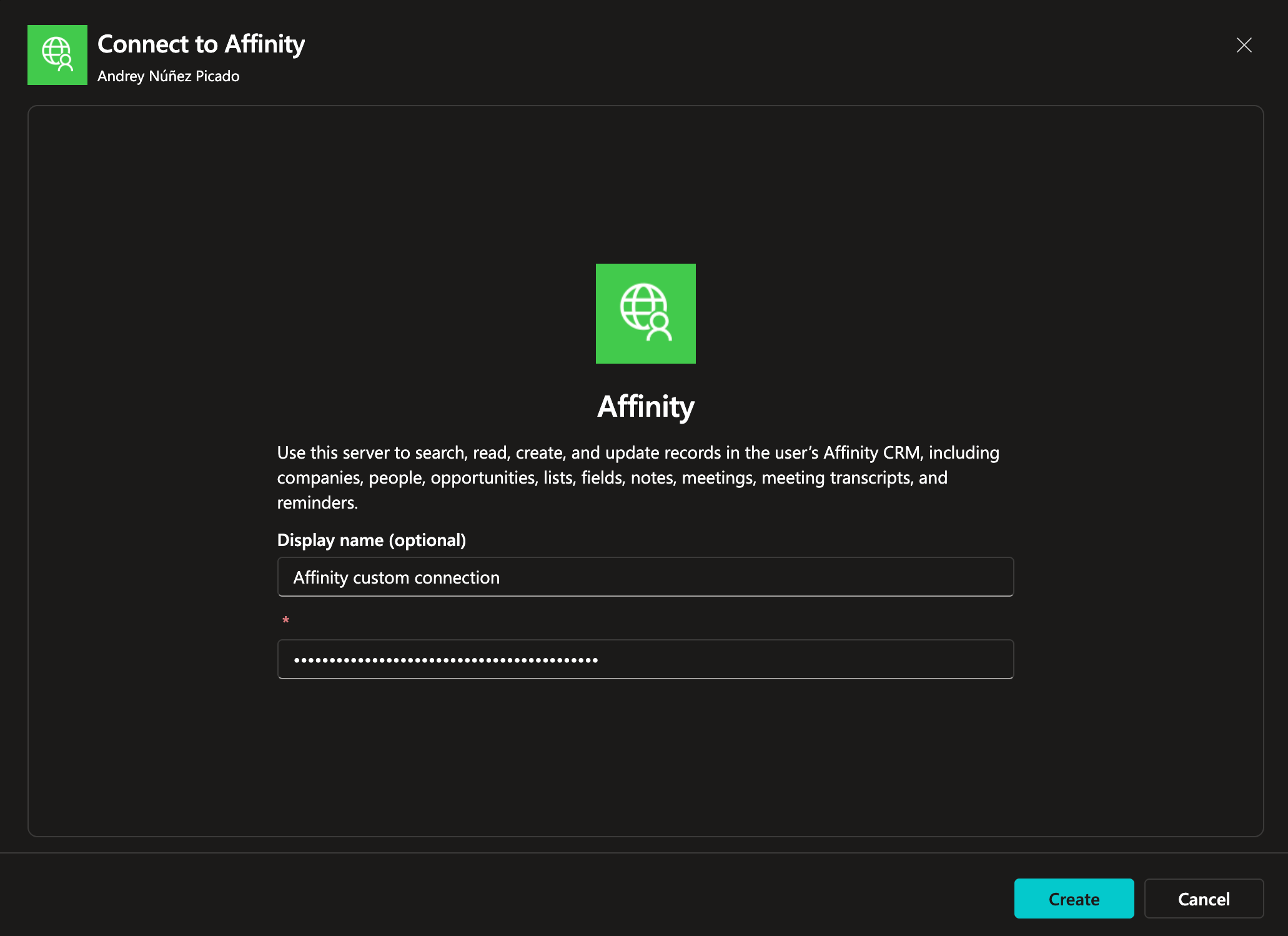
The Connect to Affinity dialog prompting for the API key credential.
- Click Create, then click Add to finish.
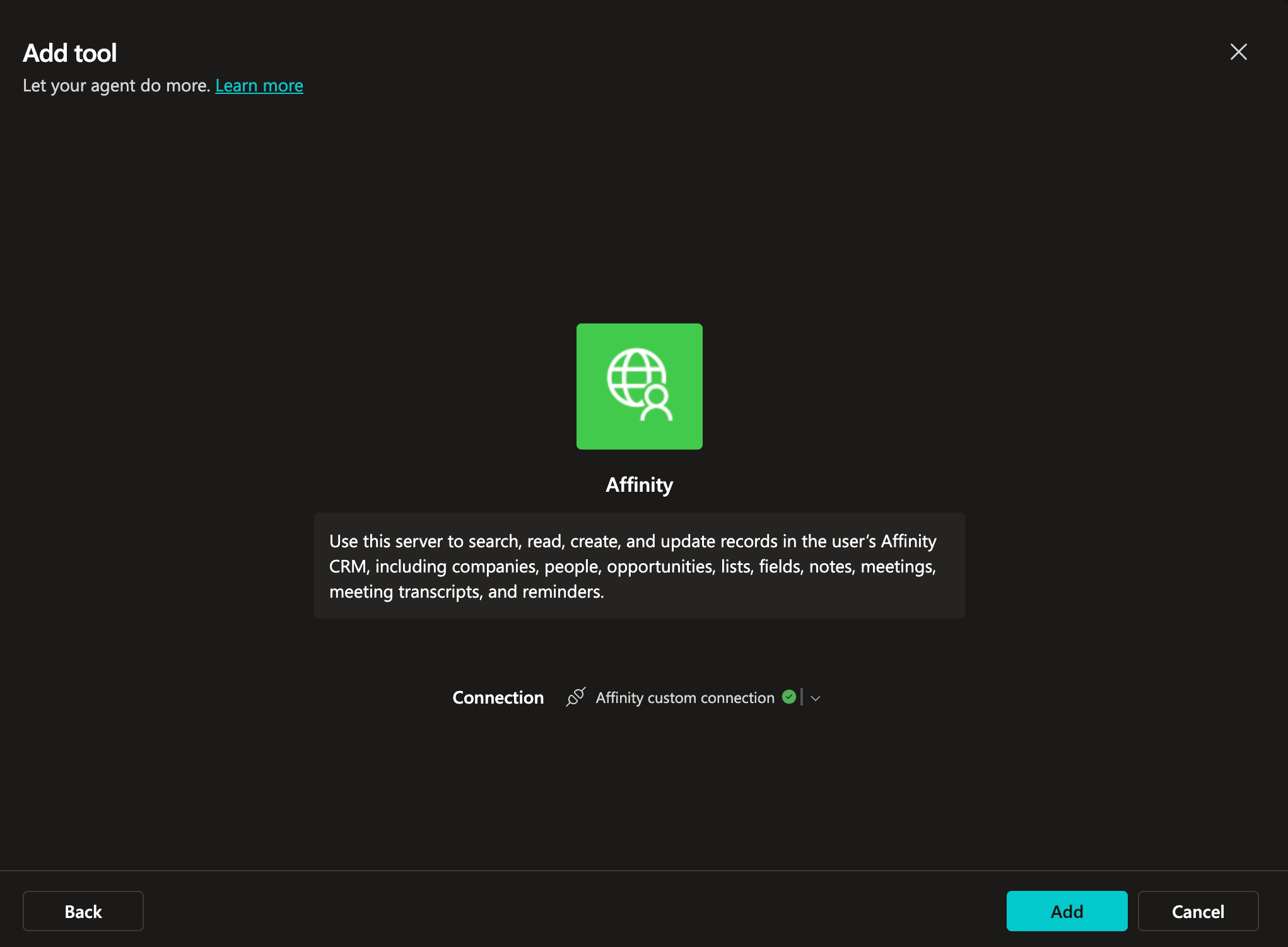
The Add tool dialog with the connection established and ready to add to the agent.
Copilot CLI
Configure per developer.- Once Copilot is started, run /mcp add and enter the configuration below:
- Server Name:
affinity-mcp - Server Type: HTTP (option 3)
- Remote server URL:
https://mcp.affinity.co/mcp - HTTP Headers:
{"Authorization": "Bearer your_api_key_here"} - Tools:
*
- Server Name:
- Press CTRL + S to save. Running /mcp show should show the newly added MCP server.
Copilot in VS Code
Configure per developer (or commit to the workspace).- Open the Command Palette (CMD/CTRL + Shift + P) and select MCP: Add Server.
- When prompted for type, select HTTP (HTTP or Server-Sent Events).
- When prompted for a URL, enter
https://mcp.affinity.co/mcp. - When prompted for the name of the server, enter
affinity-mcp. - Open
mcp.jsonand add aheaderssection with your API key:
Test your connection
Once configured, try one of these in your Copilot chat:- Find 3 companies I emailed in the last 30 days.
- Show me my upcoming meetings.
- Summarize recent activity on Acme Corp.